Features
Every feature in Dispatch, demonstrated.
Full-Text Search
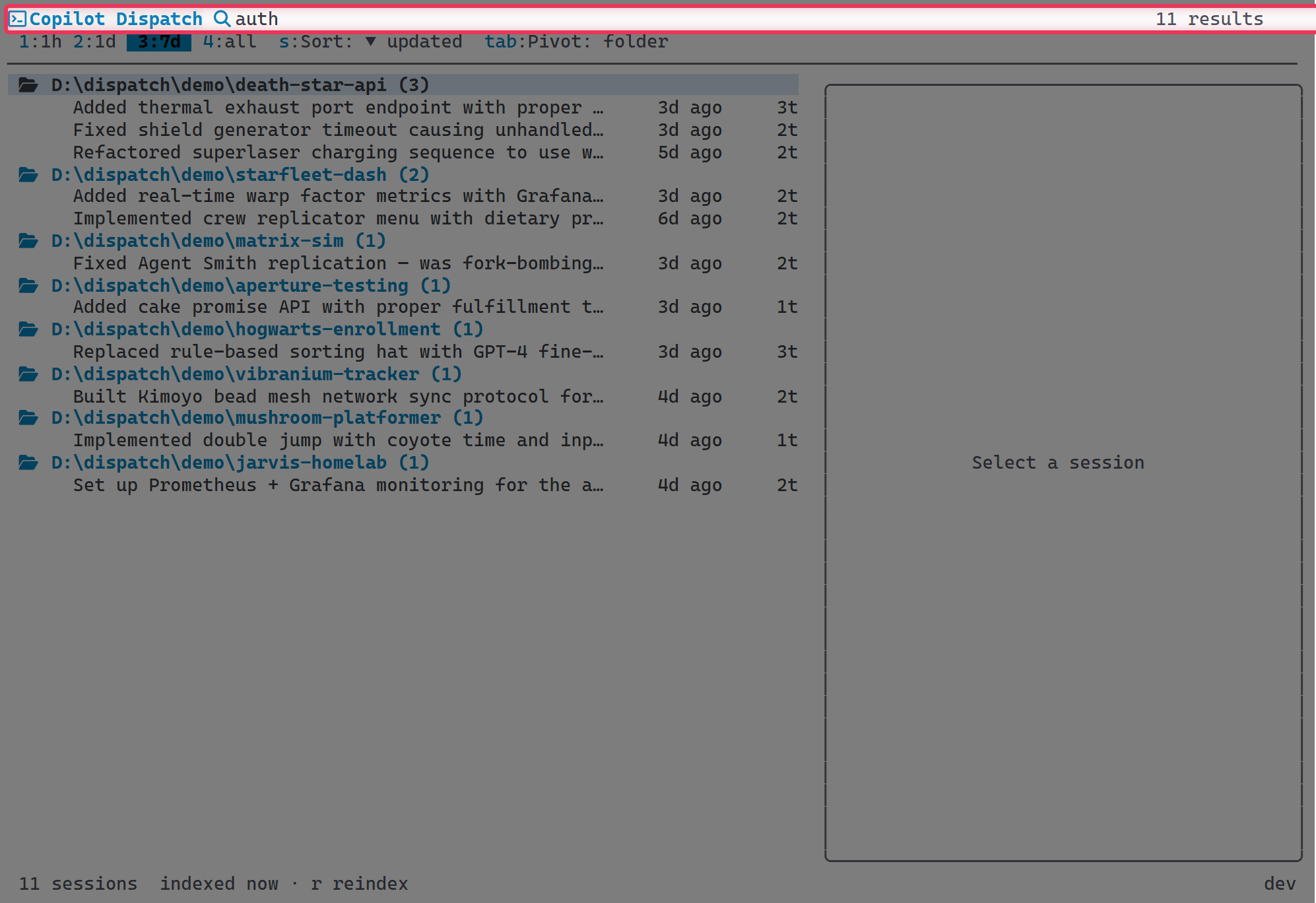
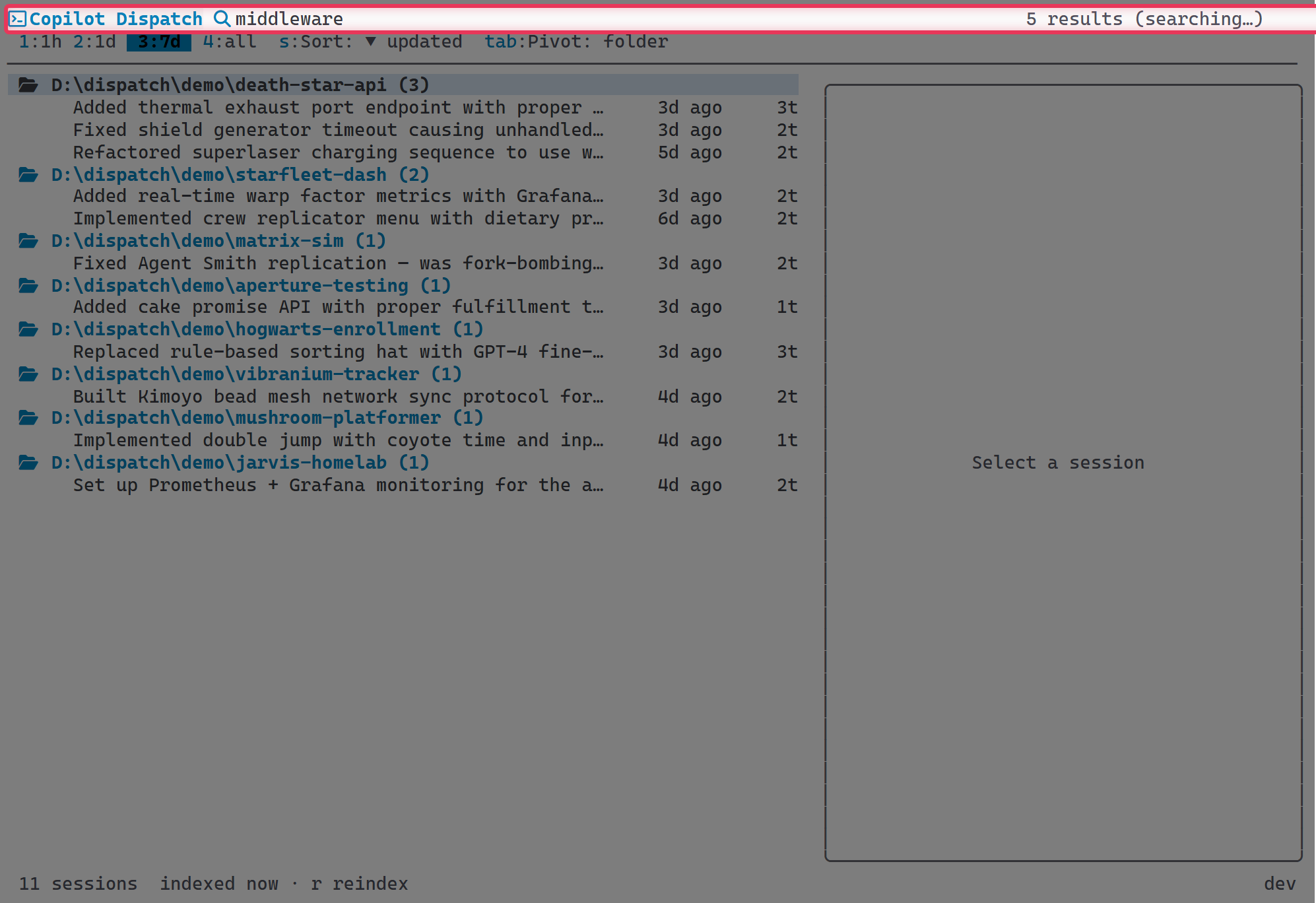
Two-tier search. Quick mode searches session summaries, branches, repositories, and directories instantly as you type. Deep mode kicks in after 300ms and extends into conversation messages, checkpoint content, file paths, and external references — commits, PRs, and issues.
- 128-character input limit
- "Searching…" spinner while deep search runs
- Result count displayed in the header
- Quick results appear immediately; deep results stream in
Directory Filtering
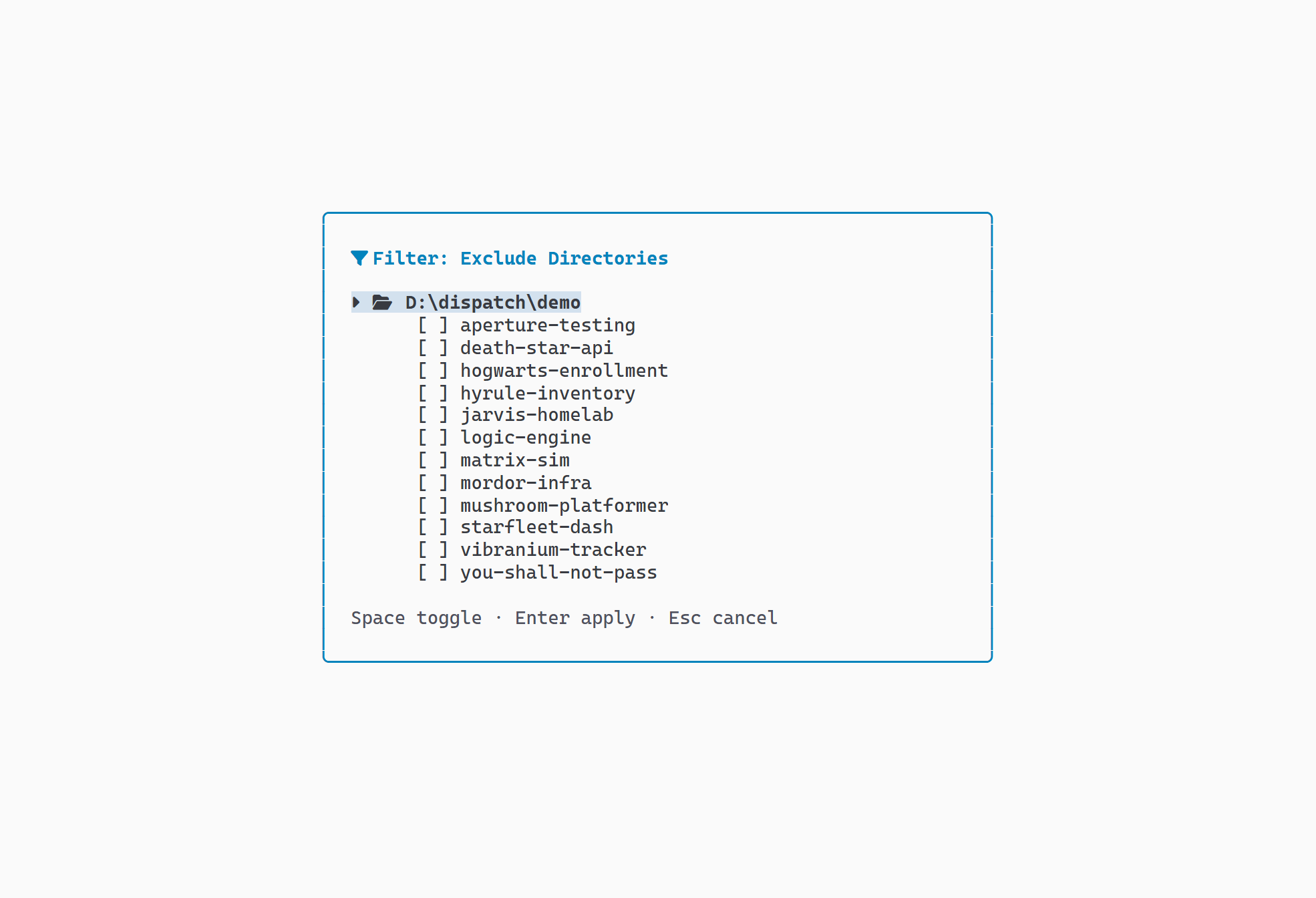
Overlay panel showing a hierarchical tree of all session directories. Toggle individual folders or entire parent groups. Applied exclusions persist to configuration.
- Space to toggle a directory on or off
- Space on a parent toggles all children
- ← / → to collapse and expand nodes
- Enter to apply, Esc to cancel
Sorting
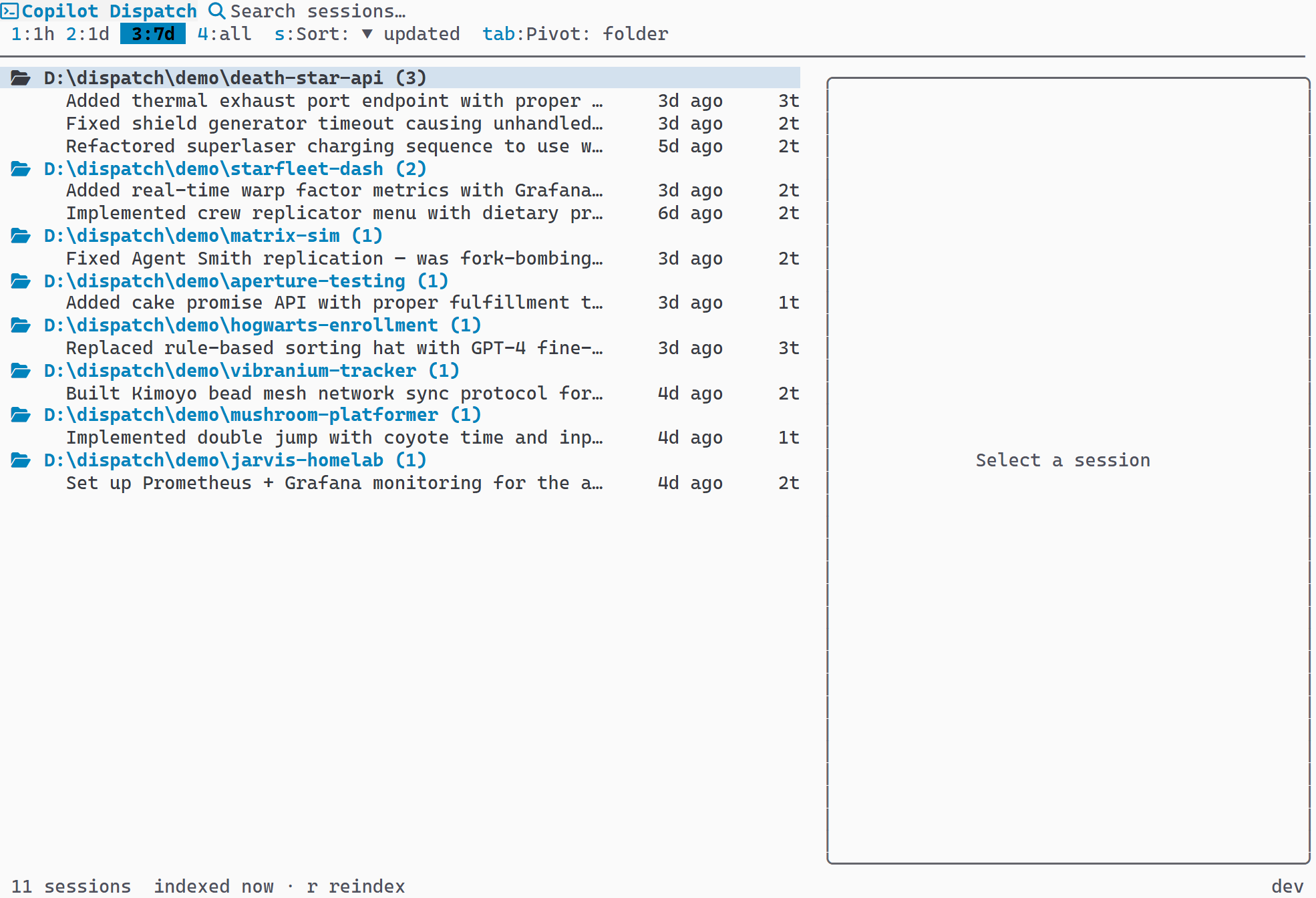
Five sort fields cycled with s: updated, folder, name, created, turns. Direction toggled with S (Shift+S). The active sort field and direction are shown in the header.
- Descending by default
- Ascending via S toggle
- Sort applies within groups when a pivot mode is active
Grouping Modes
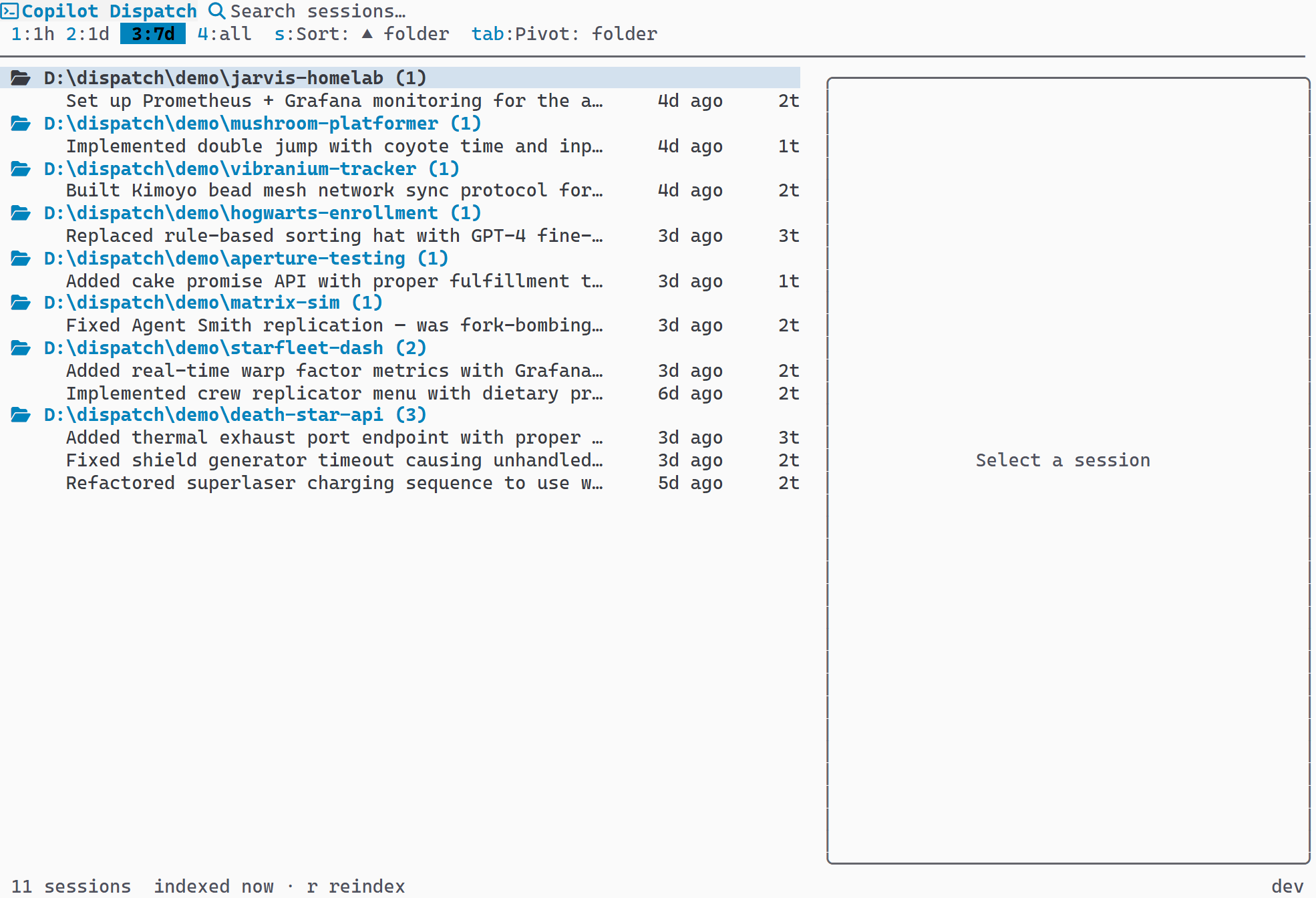
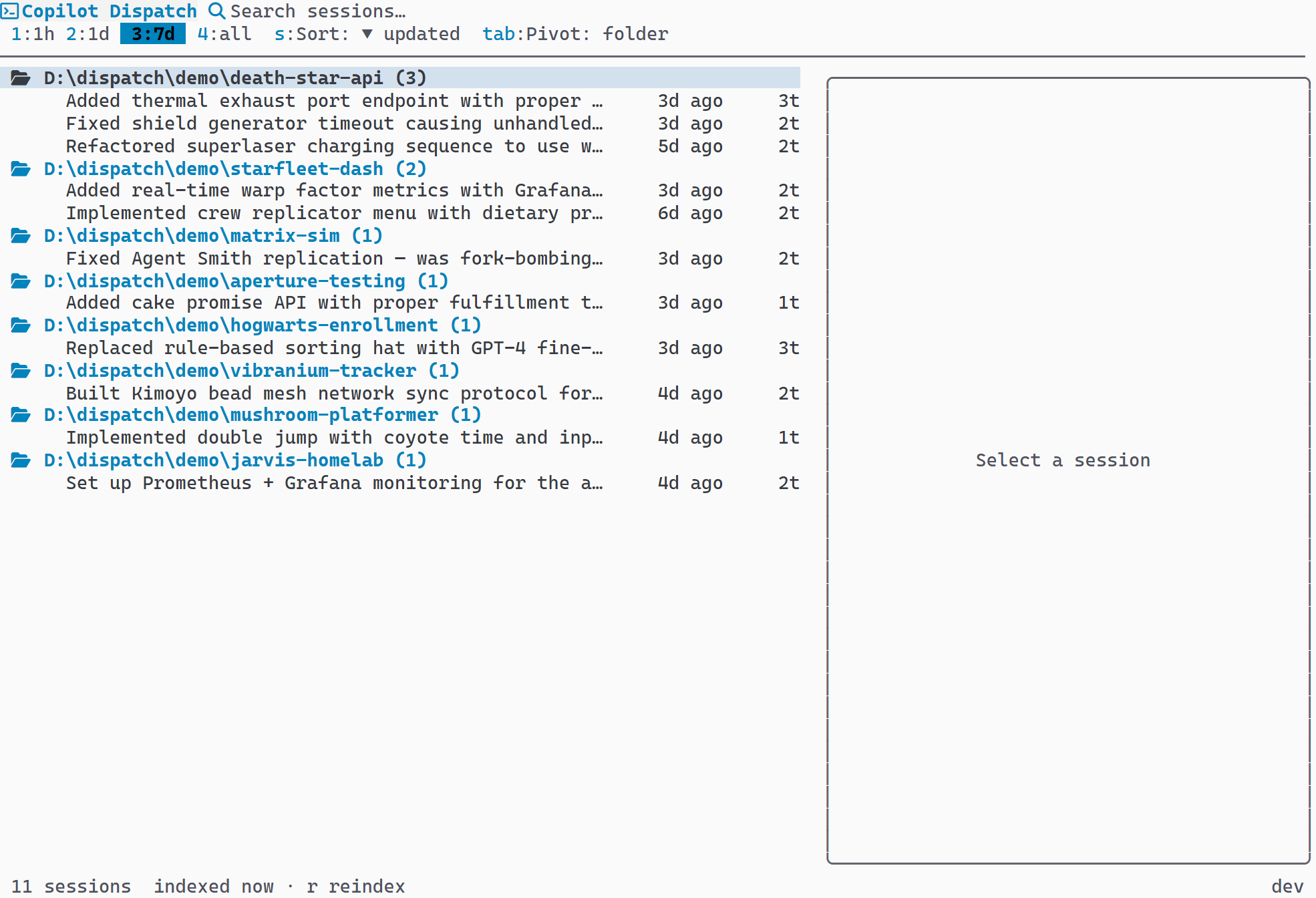
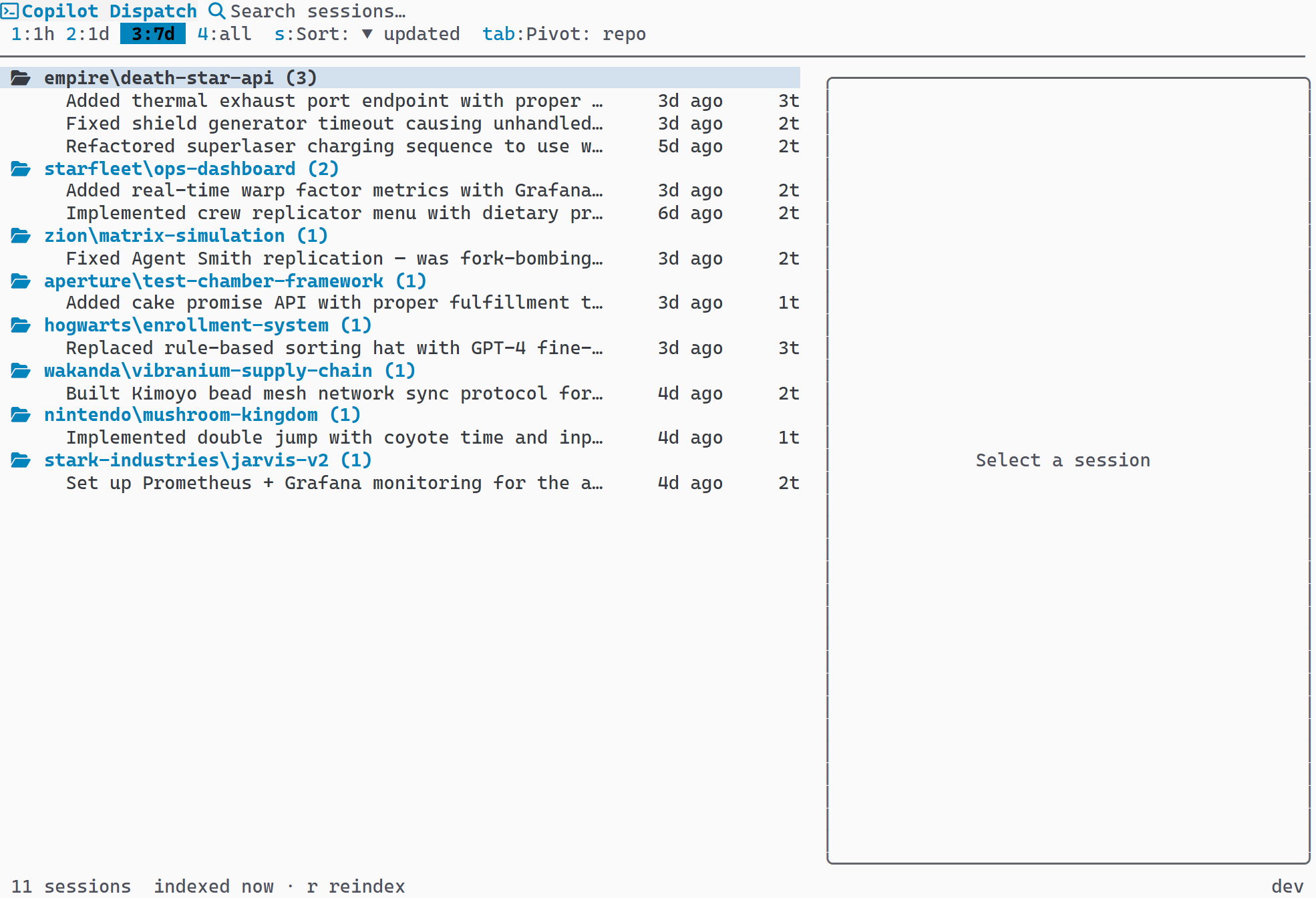
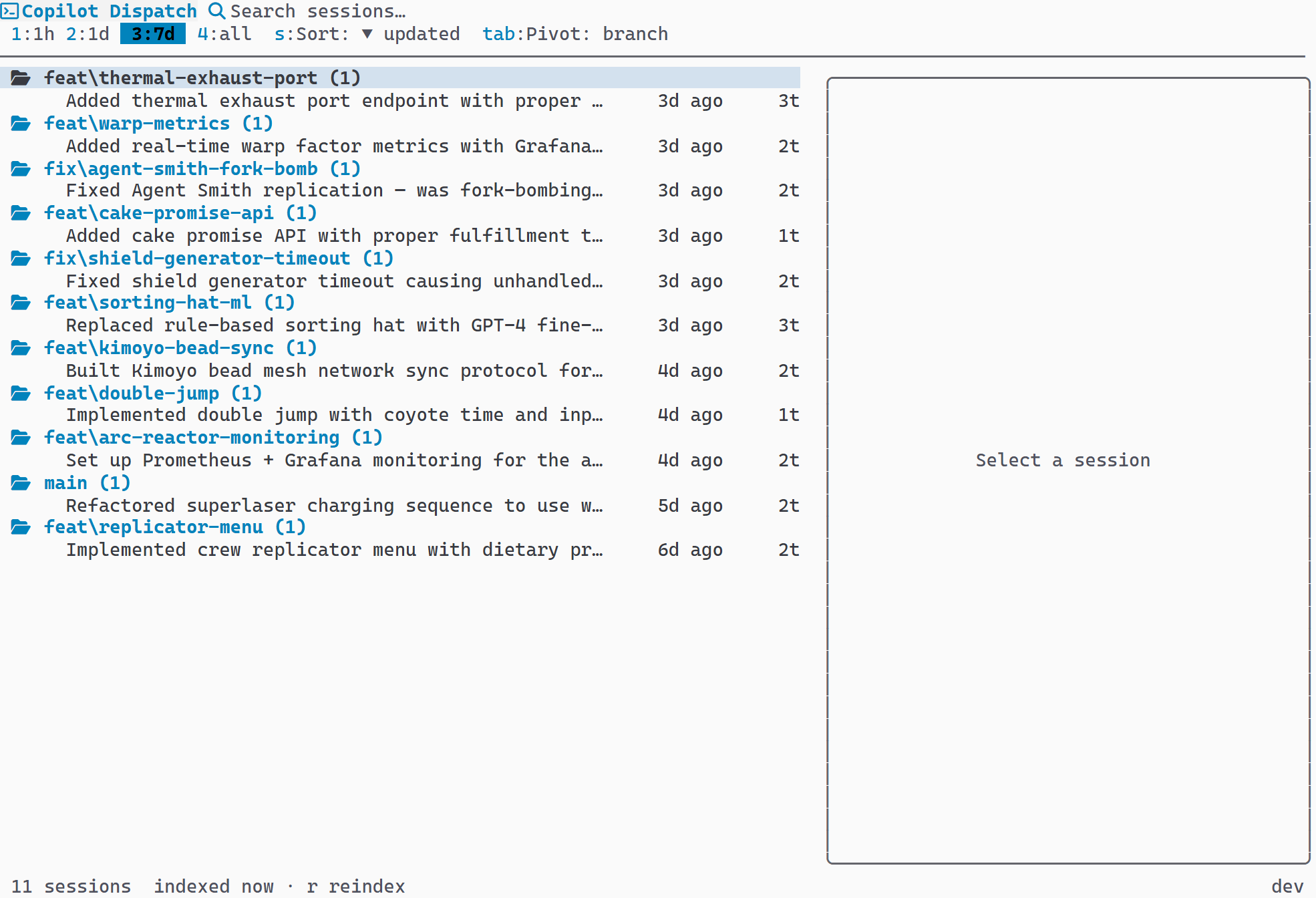
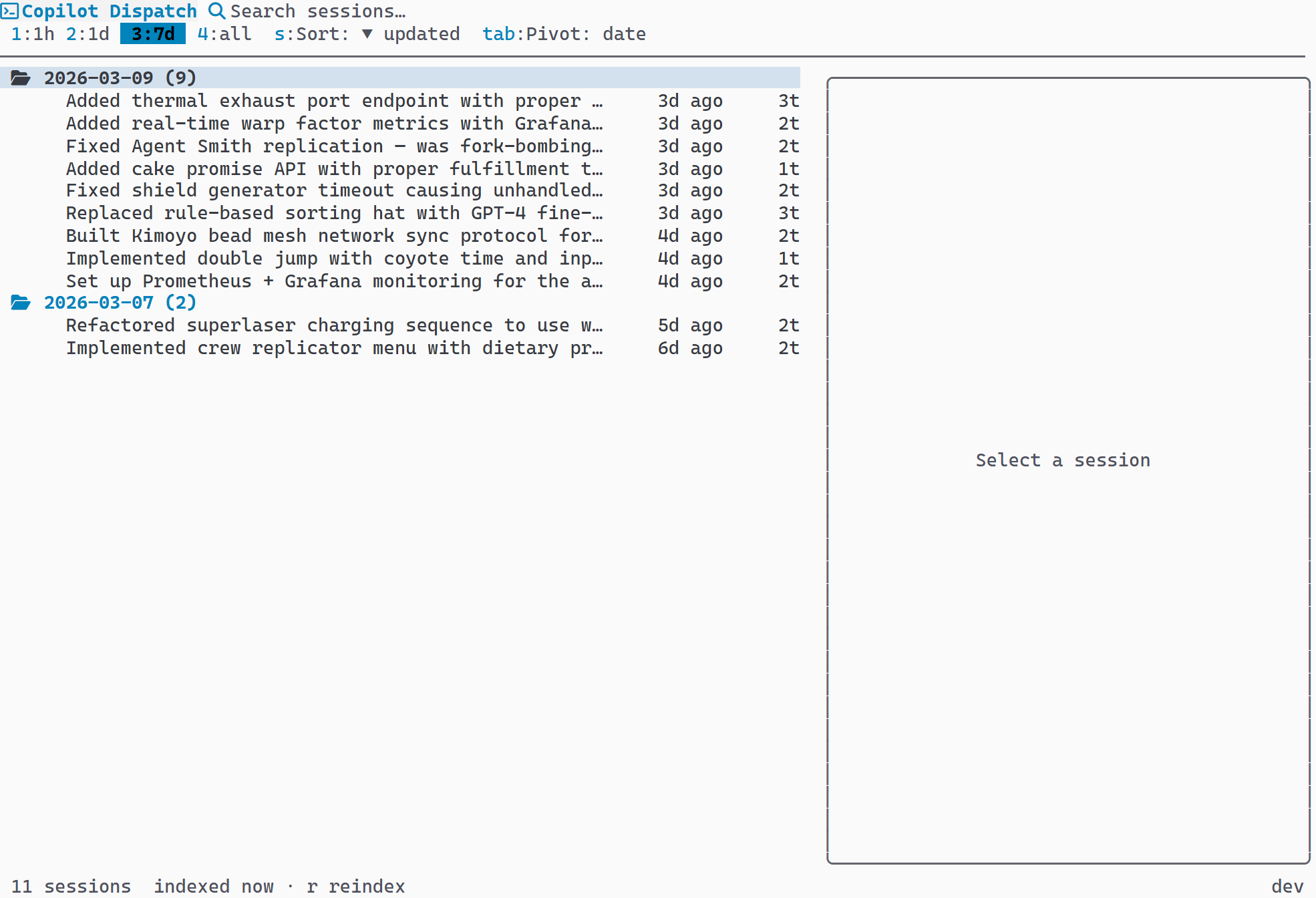
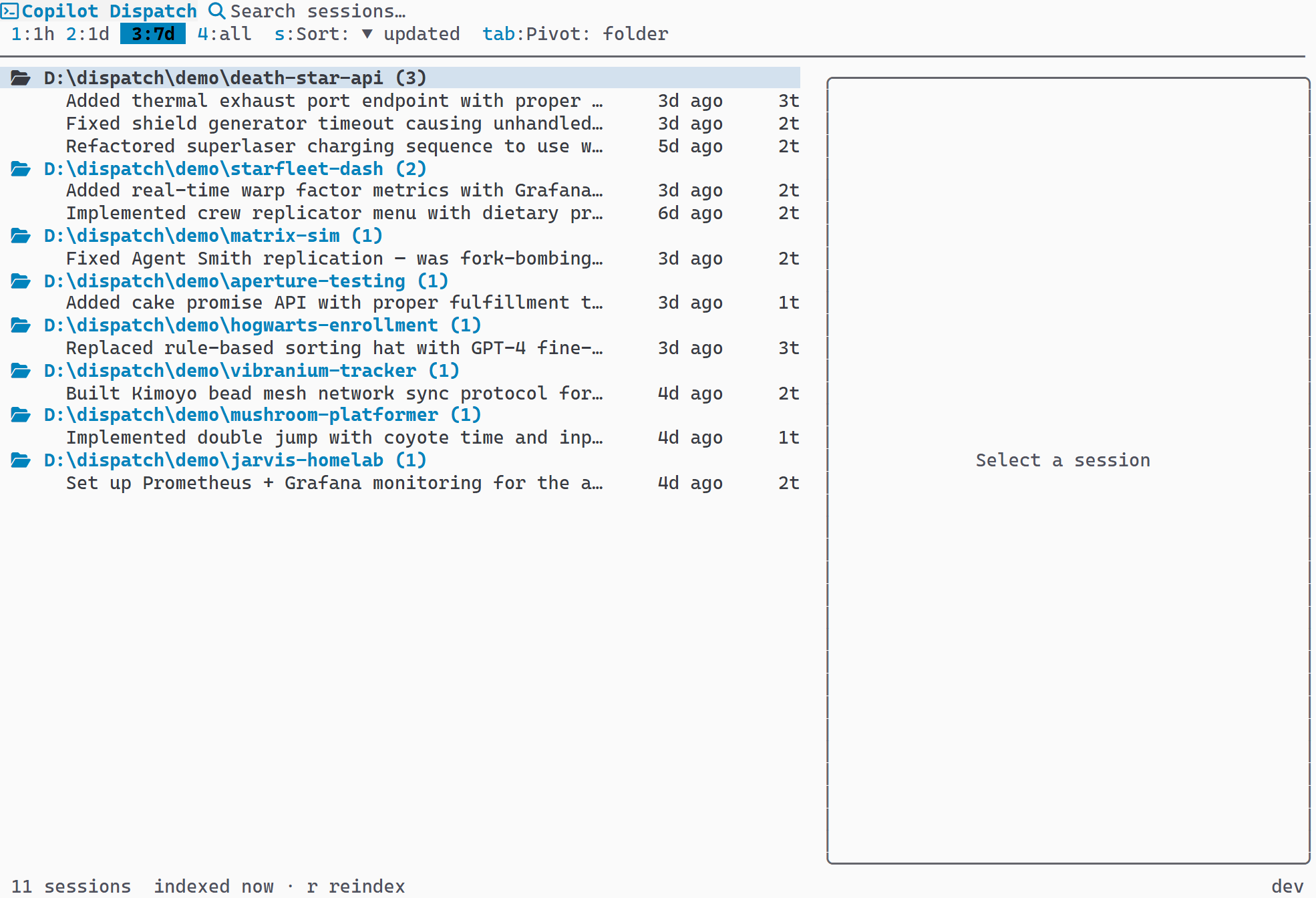
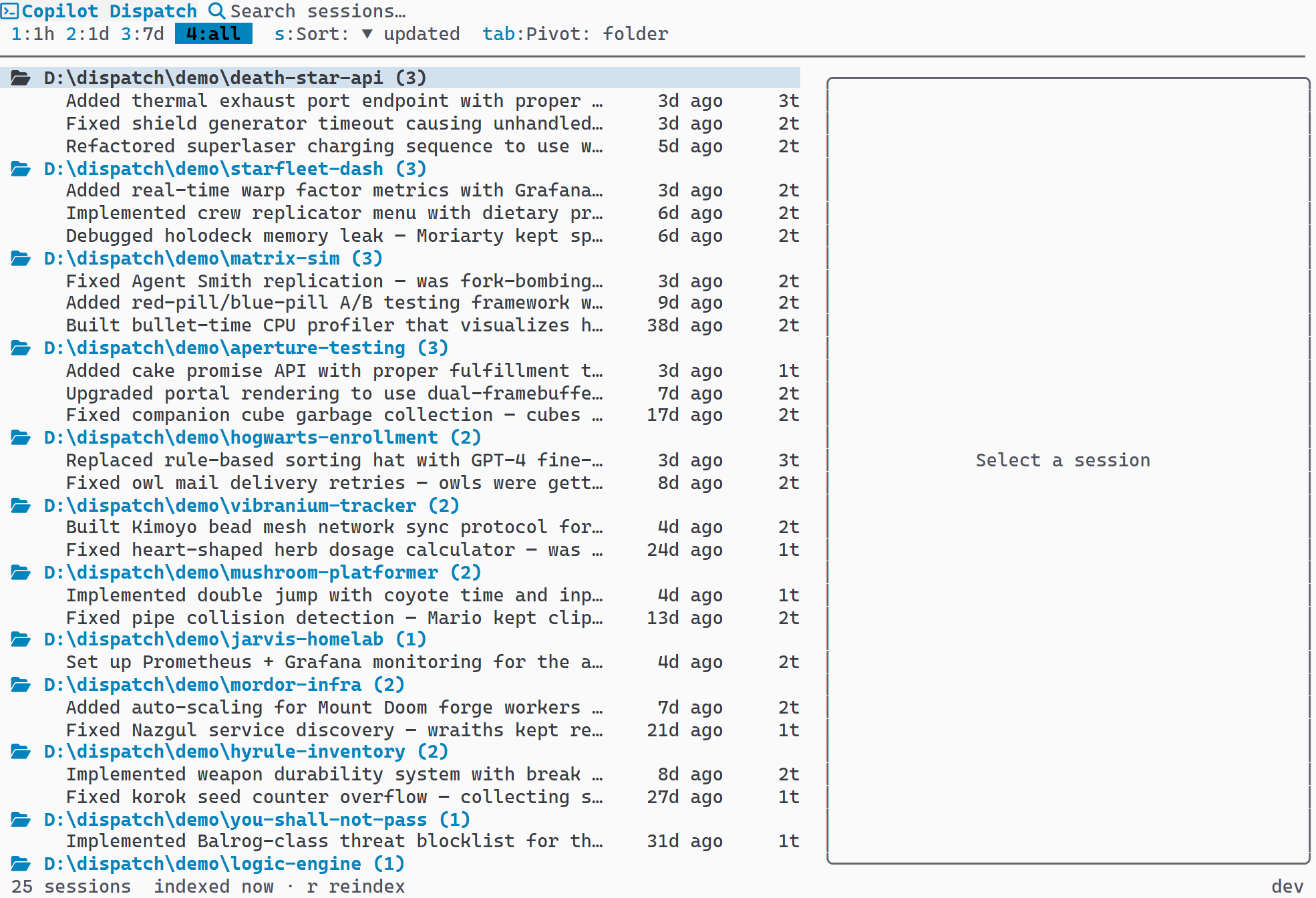
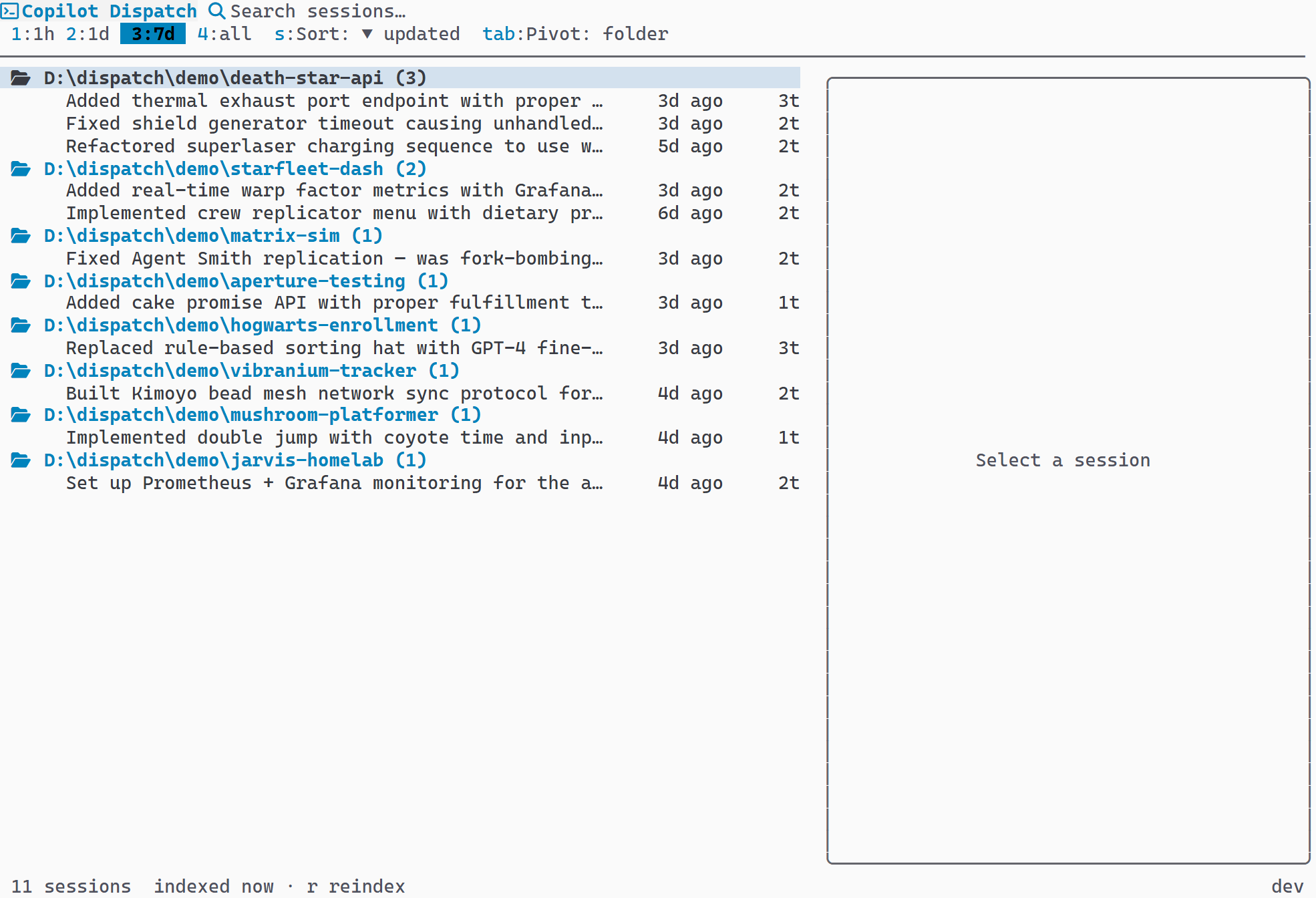
Five pivot modes cycled with Tab: flat list, folder, repository, branch, date. Grouped modes display a tree view with collapsible folder headers showing session counts.
- All groups start expanded
- ← / → to collapse and expand groups
- Double-click a folder header to launch a new session in that directory
Time Range Filtering
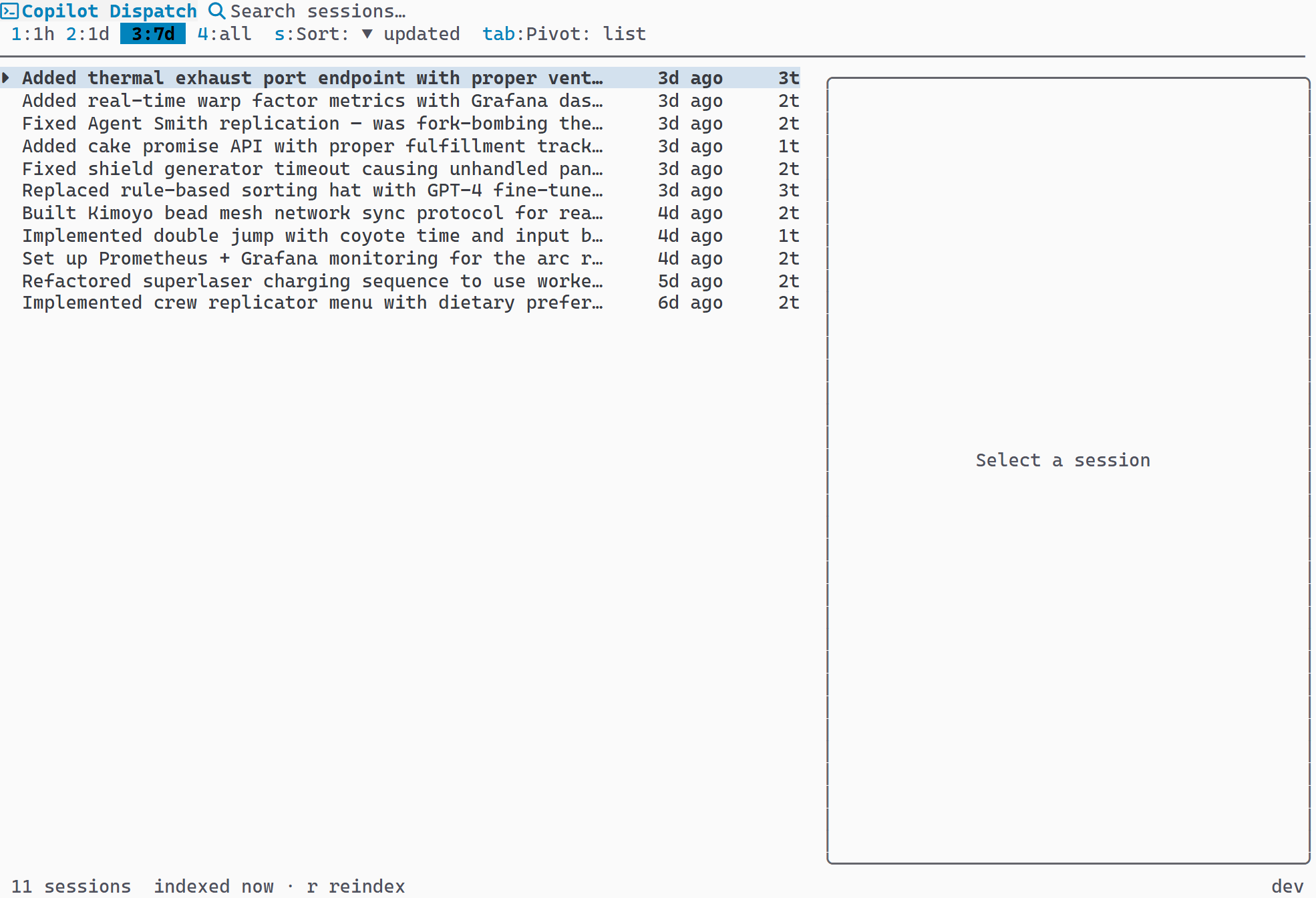
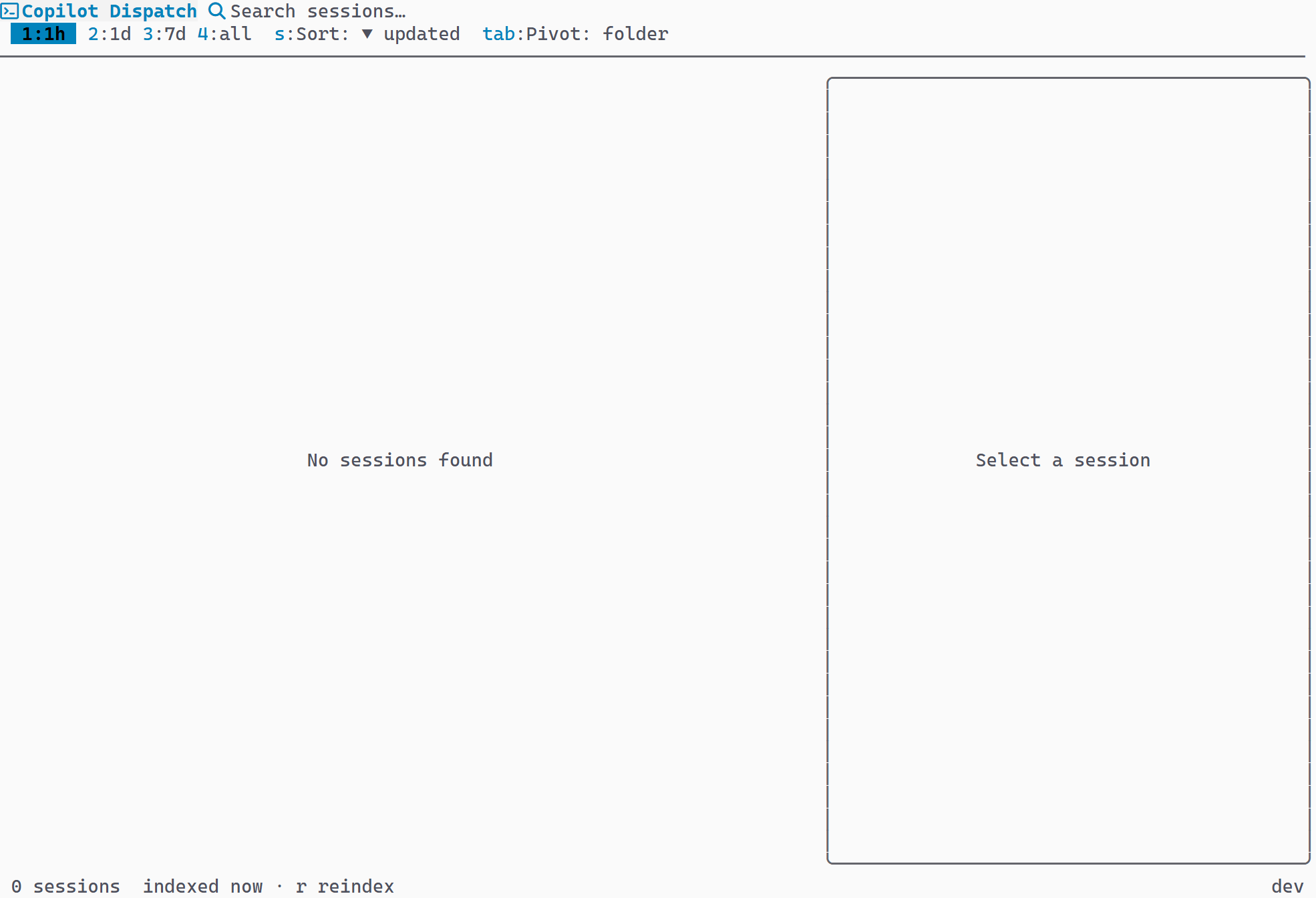
Four ranges via keys 1–4: last 1 hour, last 1 day (default), last 7 days, all time. Displayed as selectable badges in the header bar.
- Clickable badge buttons in the header
- Active range highlighted with a visual indicator
- Default range is "last 1 day"
Preview Panel
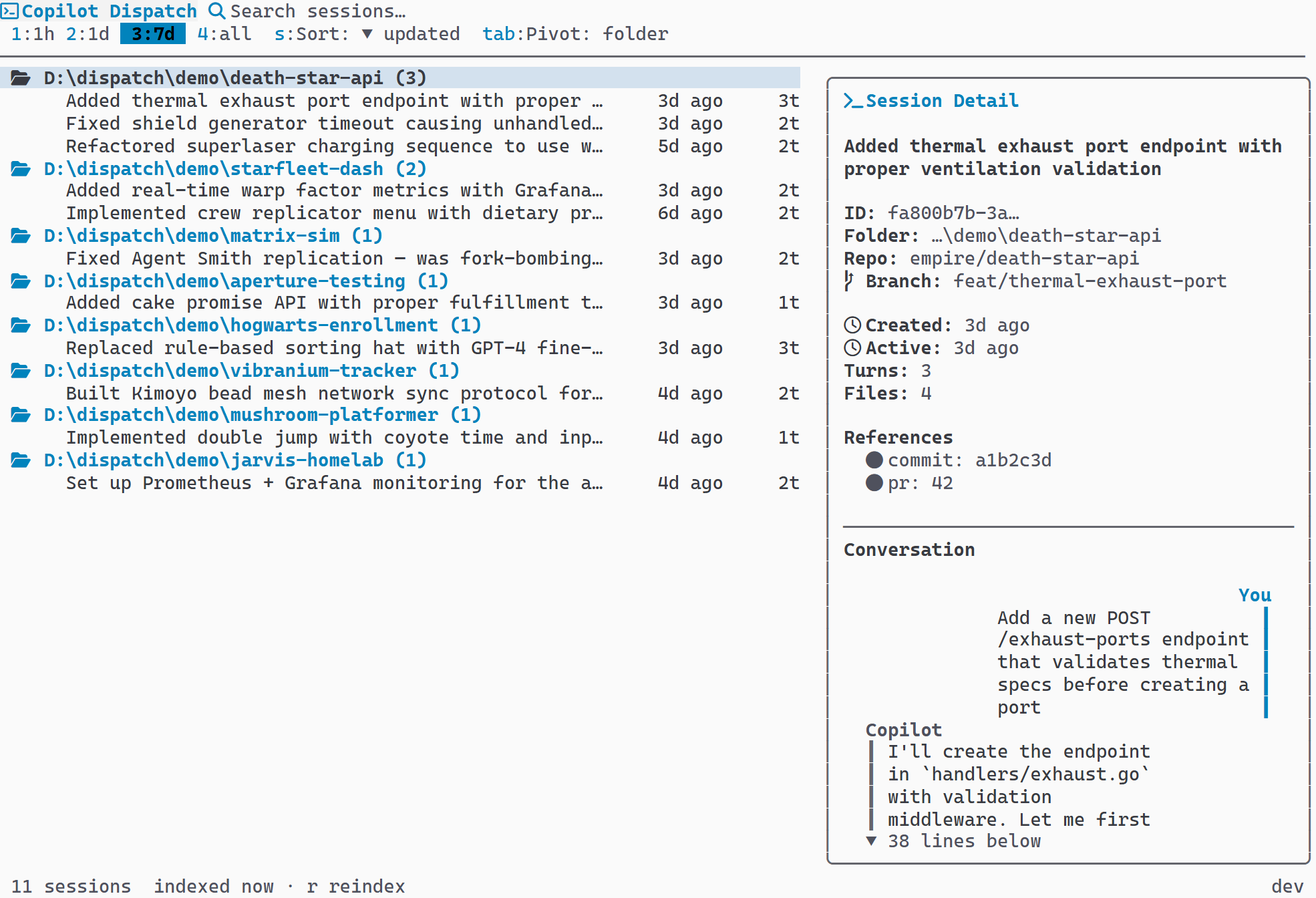
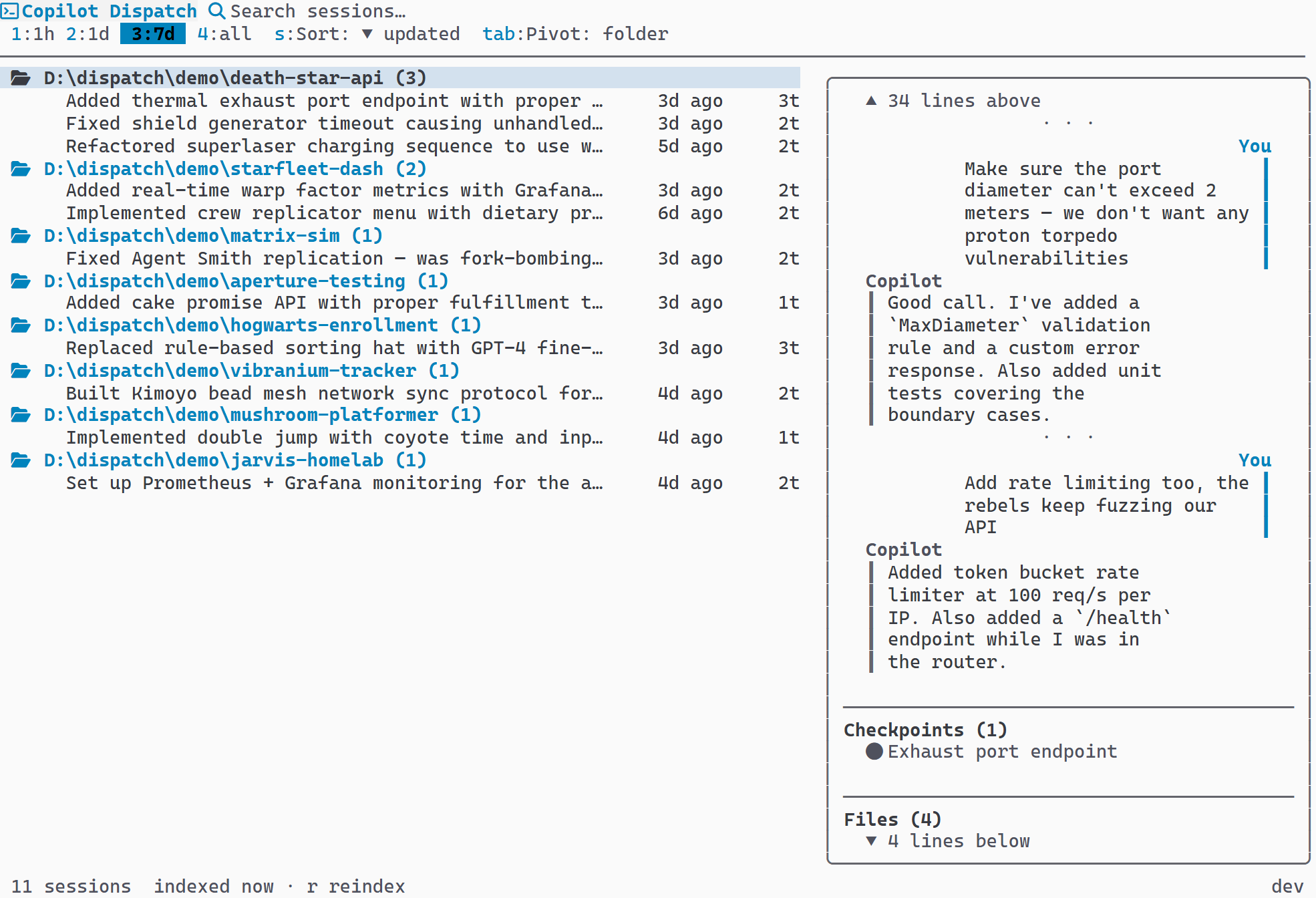
Toggle with p. Shows session metadata (created, updated, turn count, working directory), conversation history rendered as chat-style bubbles, checkpoints (up to 5), referenced files (up to 5), and external references (up to 5).
- PgUp / PgDn for keyboard scrolling
- Mouse wheel scrolling in 3-line increments
- Scroll indicators: ▲ lines above / ▼ lines below
- Responsive width: 30–40% of terminal
Launch Modes
Four launch modes: in-place (replaces the TUI), new tab, new window, and split pane (Windows Terminal only). The default is configurable via settings. Override per-session with w (window), t (tab), or e (pane).
- Ctrl+double-click forces a new window
- Shift+double-click forces a new tab
- Pane mode supports directional splits: auto, right, down, left, up
- Windows: uses
wtcommands for Windows Terminal - macOS: supports Terminal.app and iTerm2
- Linux: detects and delegates to the active terminal emulator
Launch behavior is platform-specific and adapts to the detected terminal. No screenshot — the result is a new Copilot CLI session opening in your configured terminal.
Session Hiding
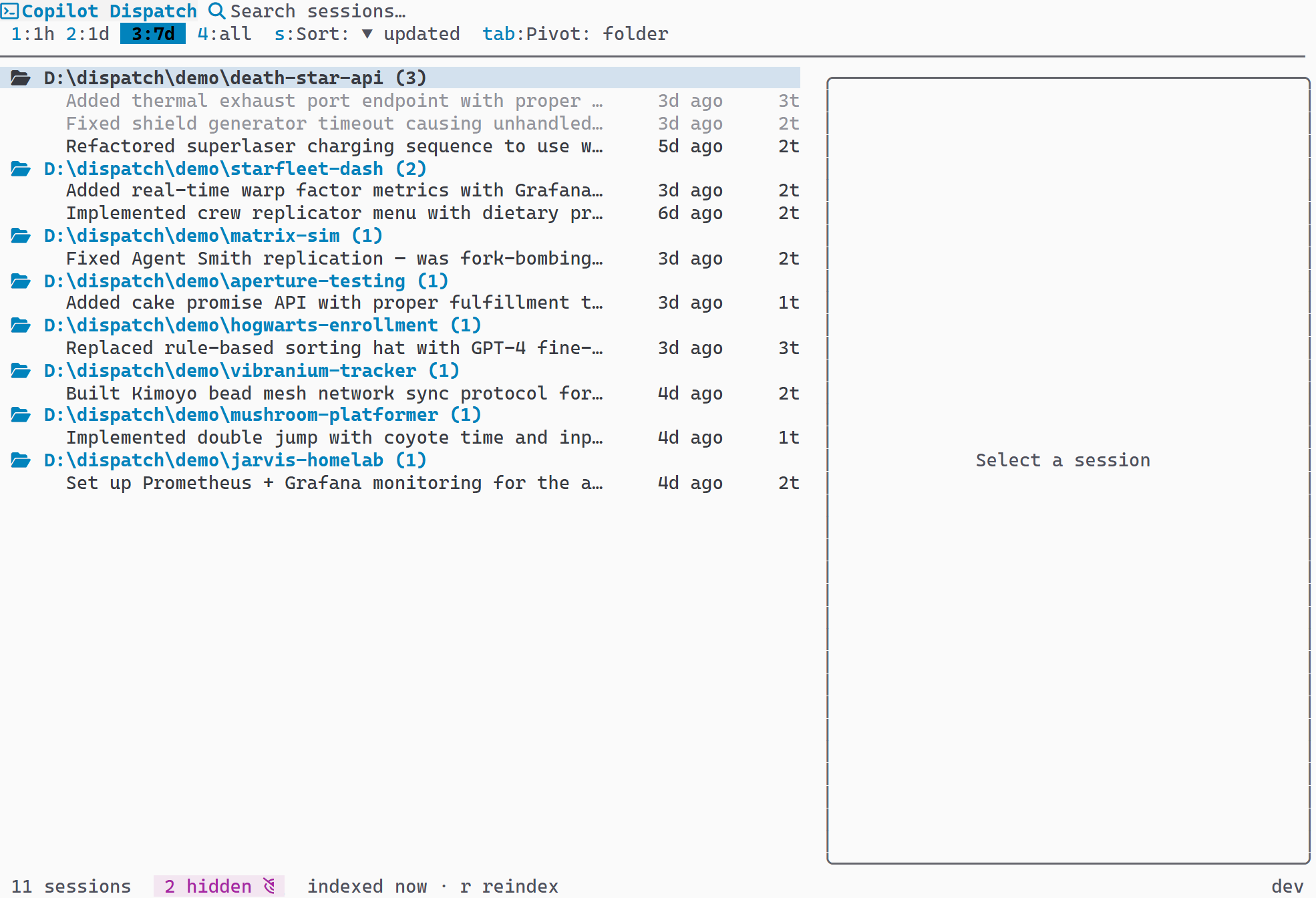
h hides the currently selected session. H (Shift+H) toggles visibility of all hidden sessions. Hidden sessions appear dimmed when visible. The footer shows the hidden count with an eye icon.
- Per-session persistence — hiding state saved to config
- Hidden count displayed in footer with 👁 indicator
- Dimmed styling differentiates hidden from active sessions
Tree View Navigation
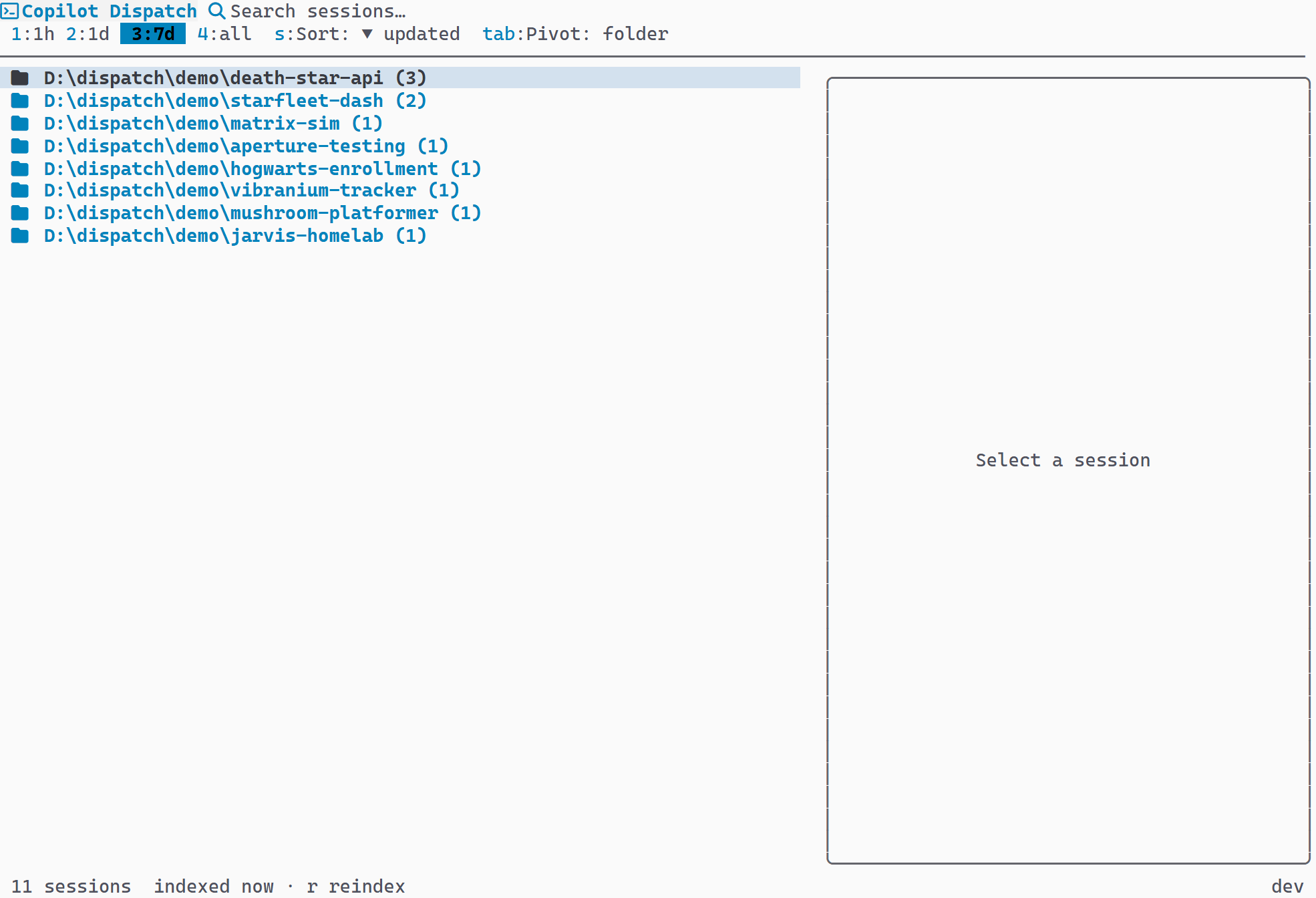
When grouped (any pivot mode except flat), sessions display under collapsible folder headers. Each header shows the path and session count. Double-click a folder header to launch a new Copilot CLI session in that directory.
- ← to collapse, → to expand
- Folder icon changes between open and closed states
- Home directory paths abbreviated with
~
Settings Panel
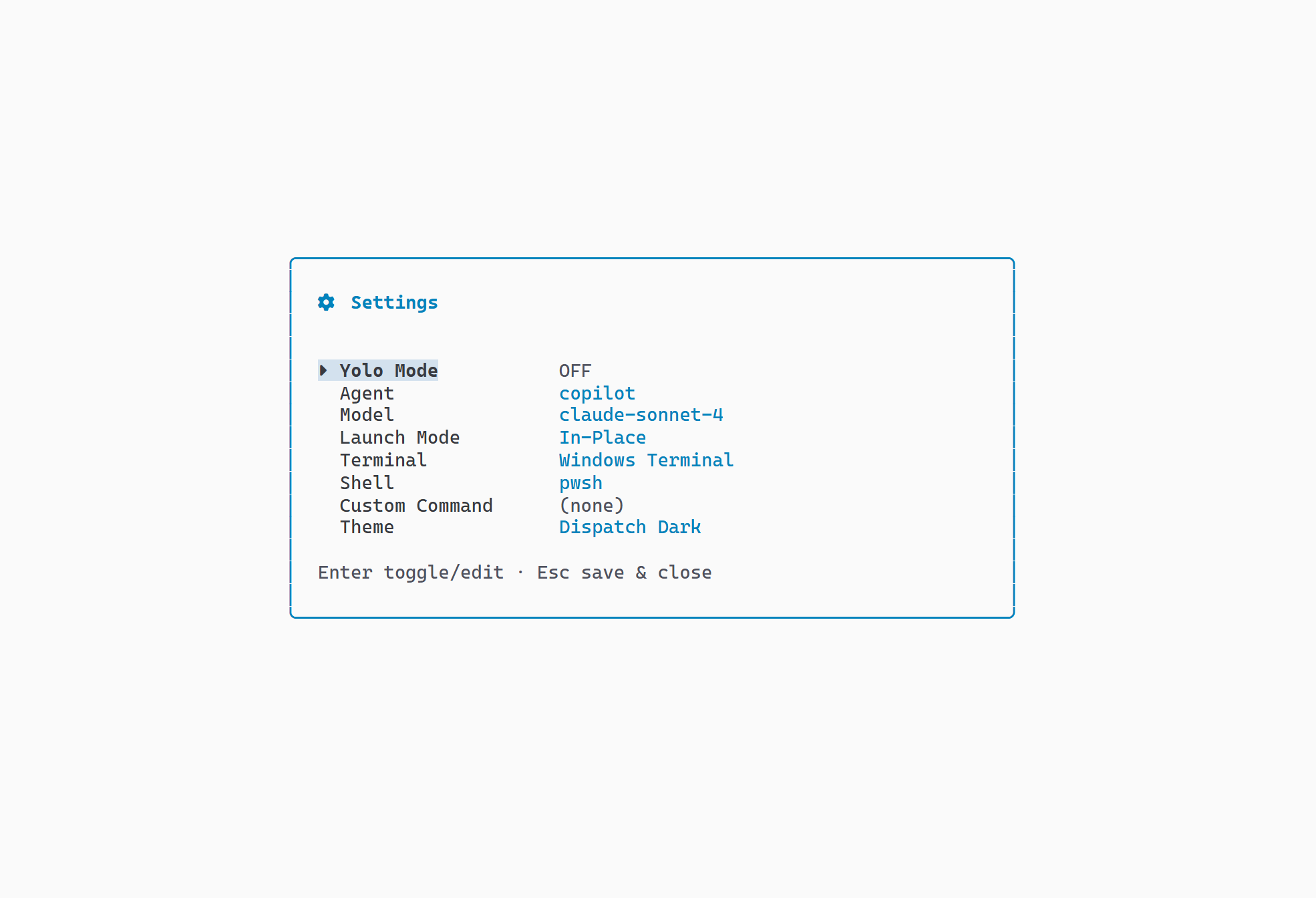
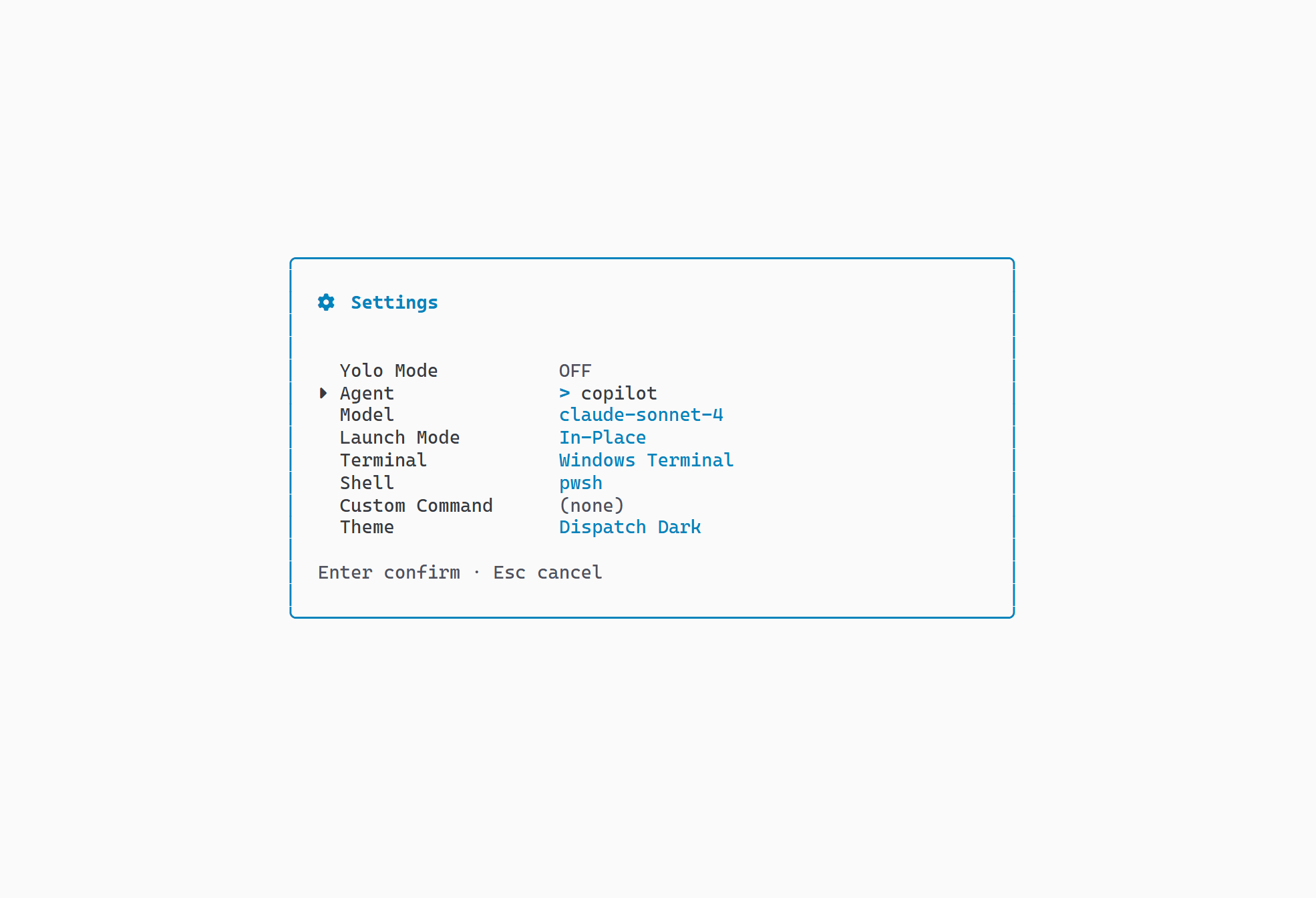
, (comma) to open. Nine editable fields: Yolo Mode (boolean
toggle), Agent (text), Model (text), Launch Mode (selector:
in-place/tab/window/pane), Pane Direction (selector: auto/right/down/left/up,
dimmed when not in pane mode), Terminal (selector), Shell (selector),
Custom Command (text with {sessionId} placeholder),
and Theme (selector).
- Enter to edit or toggle a field
- Agent and Model fields dim when Custom Command is set
- Changes saved automatically on Esc
Shell Selection
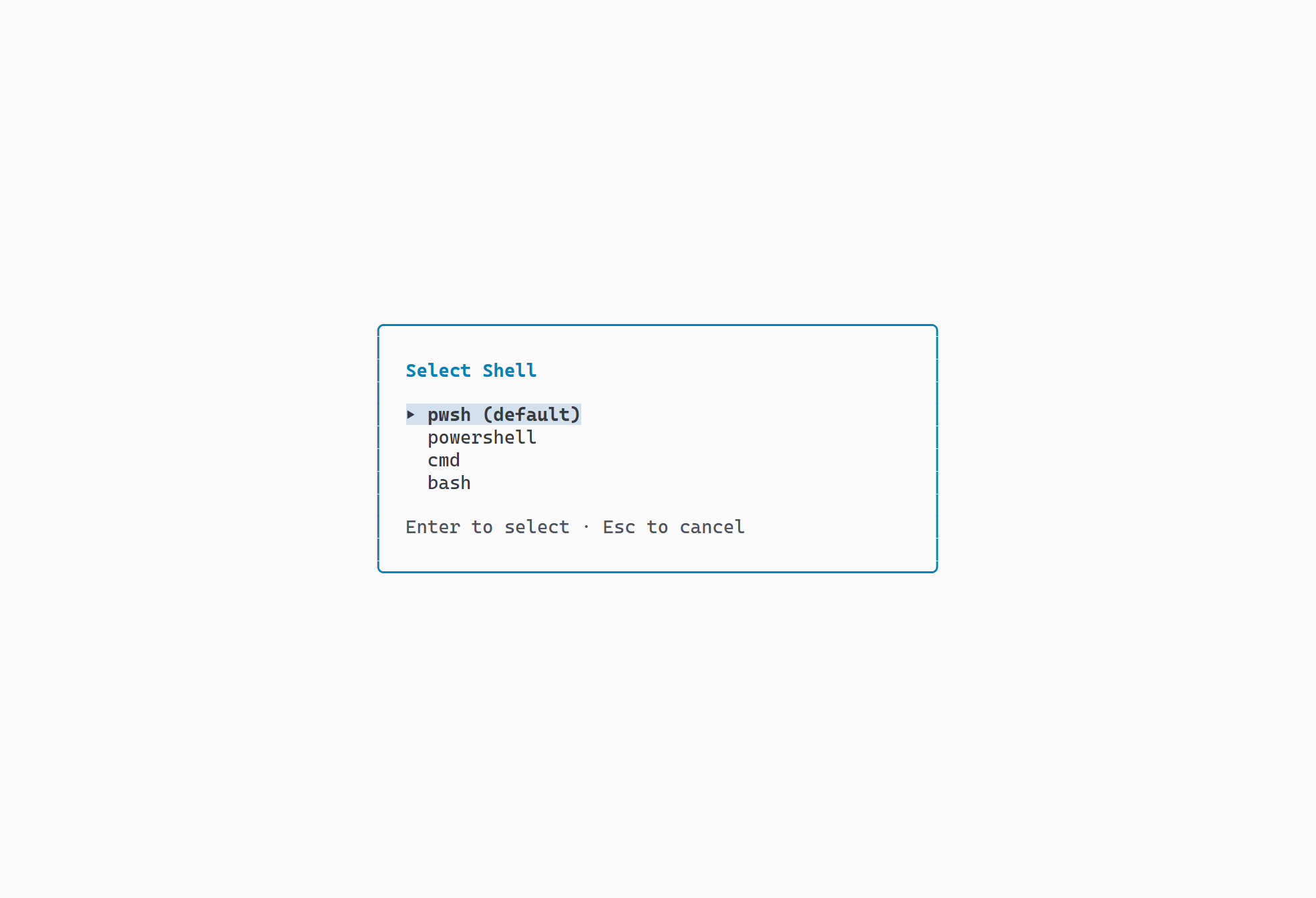
Modal picker shown when multiple shells are detected. The default shell is listed first with a "(default)" label. Navigate with ↑/↓, select with Enter, cancel with Esc.
- Auto-detects installed shells: PowerShell, bash, zsh, fish, cmd.exe
- Default shell marked and listed first
Themes
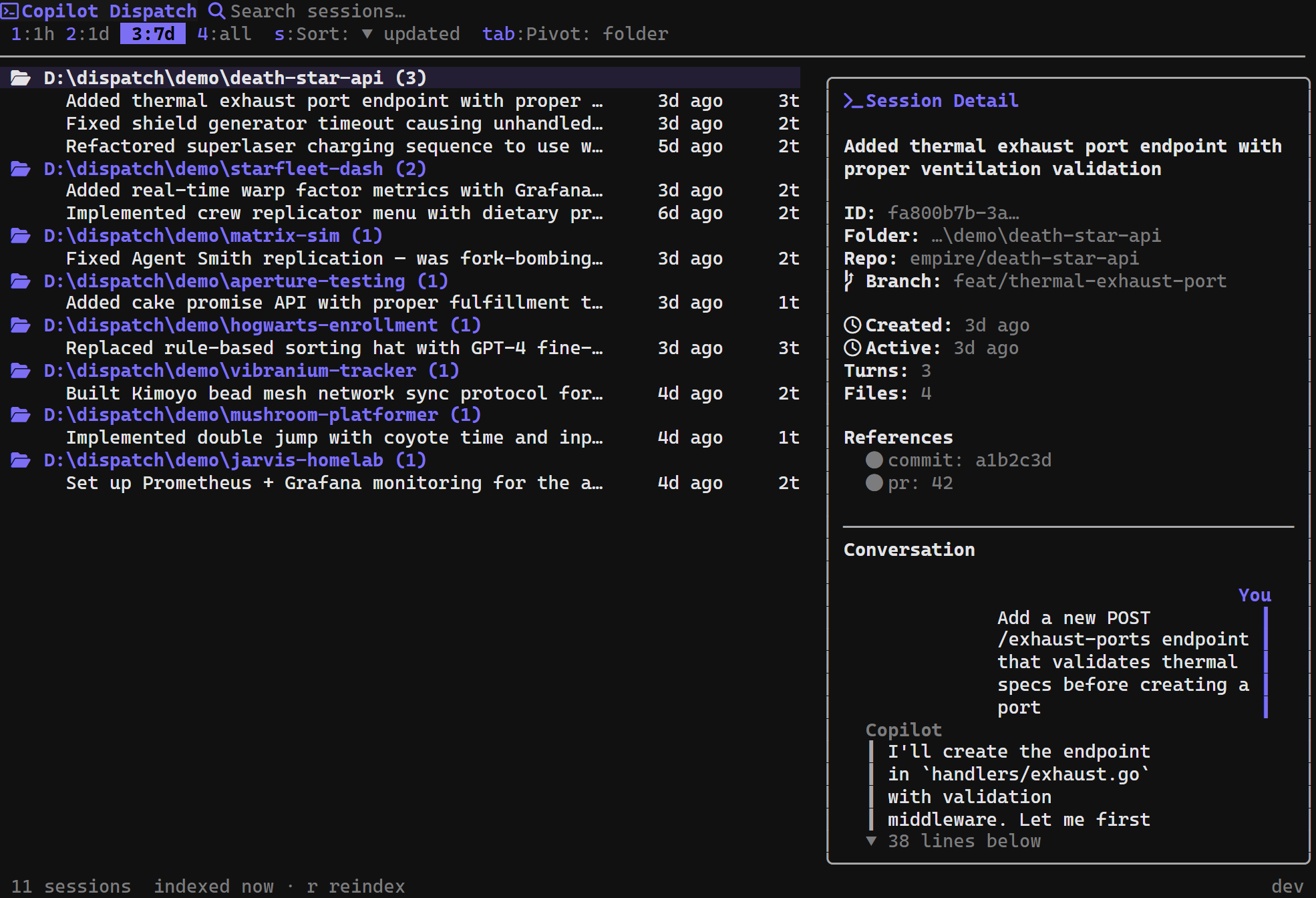
Terminal light/dark mode auto-detected by default. Five built-in
schemes: Dispatch Dark, Dispatch Light, Campbell, One Half Dark,
One Half Light. Custom schemes supported via Windows Terminal JSON
format pasted into the schemes config array.
- Cycled in the settings panel
- User-defined schemes merged with the built-in list
- Terminal background detection for automatic selection
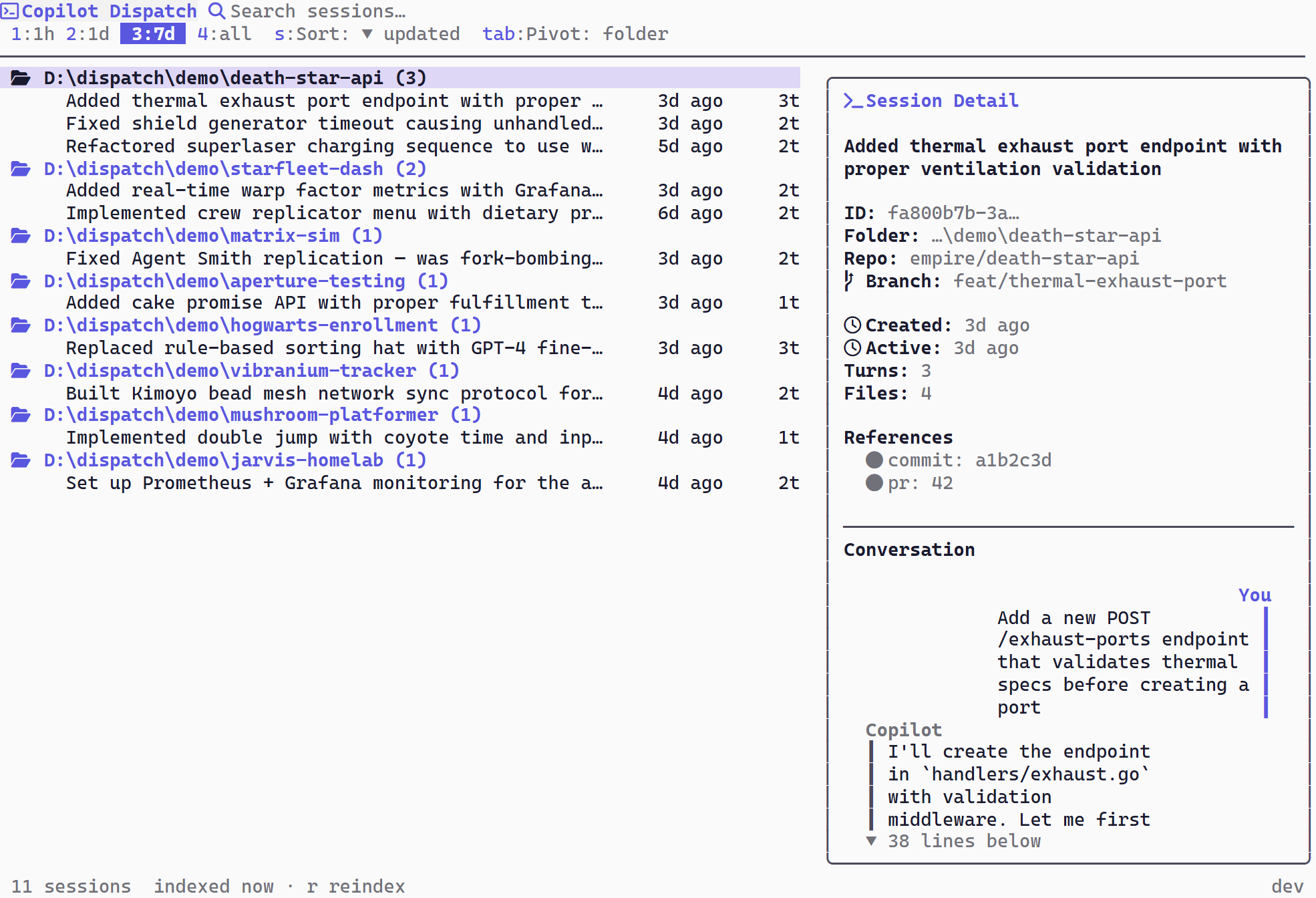
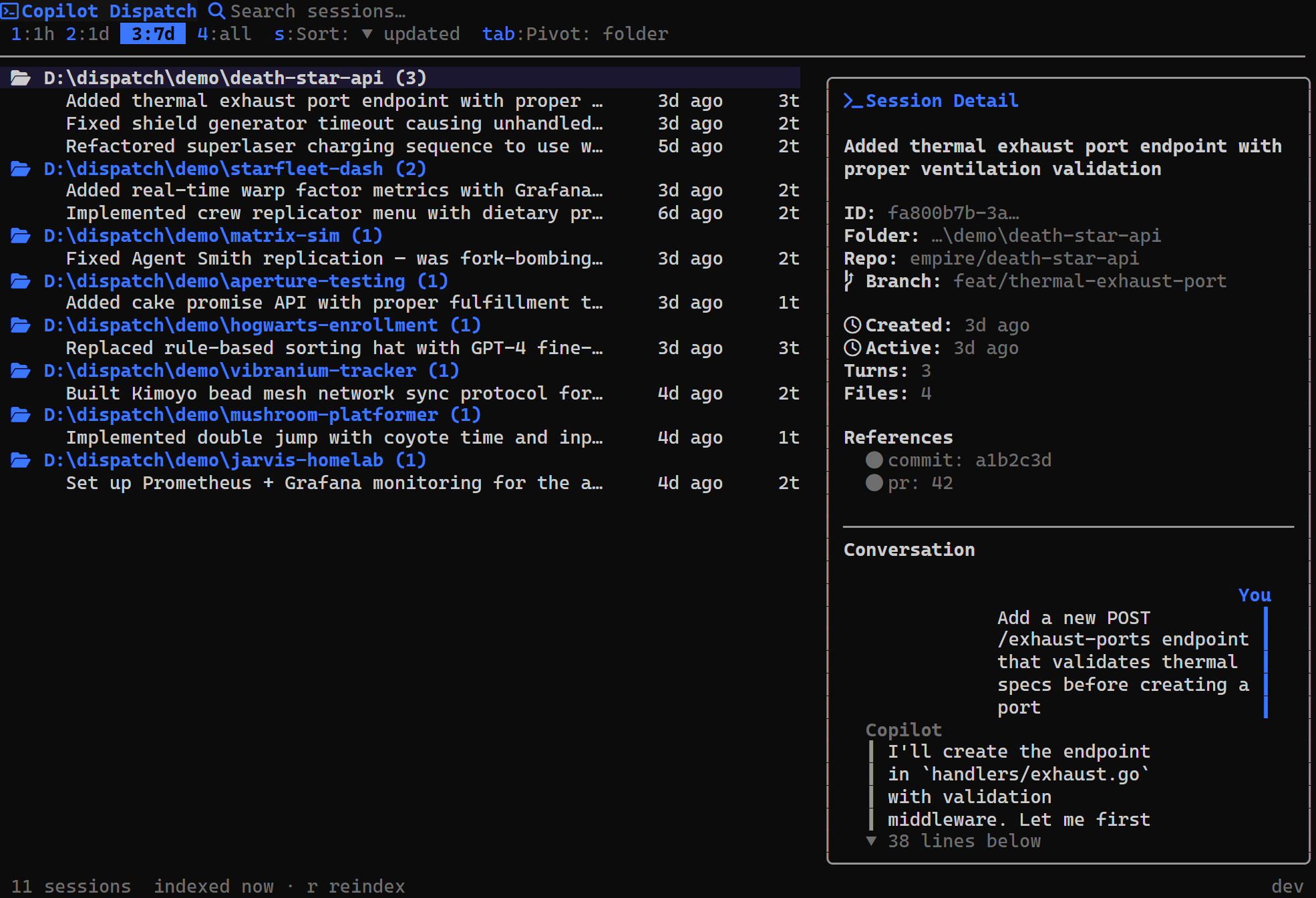
Nerd Font Detection
Dispatch auto-detects whether a Nerd Font is active in your terminal. When detected, the UI uses rich Nerd Font icons for folders, files, sessions, and status indicators. When no Nerd Font is found, it falls back to clean ASCII icons.
- Automatic detection — no configuration needed
- Rich icons with Nerd Fonts, ASCII fallback without
- Works across all platforms and terminals
Install any Nerd Font and set it as your terminal font to enable rich icons.
Help Overlay
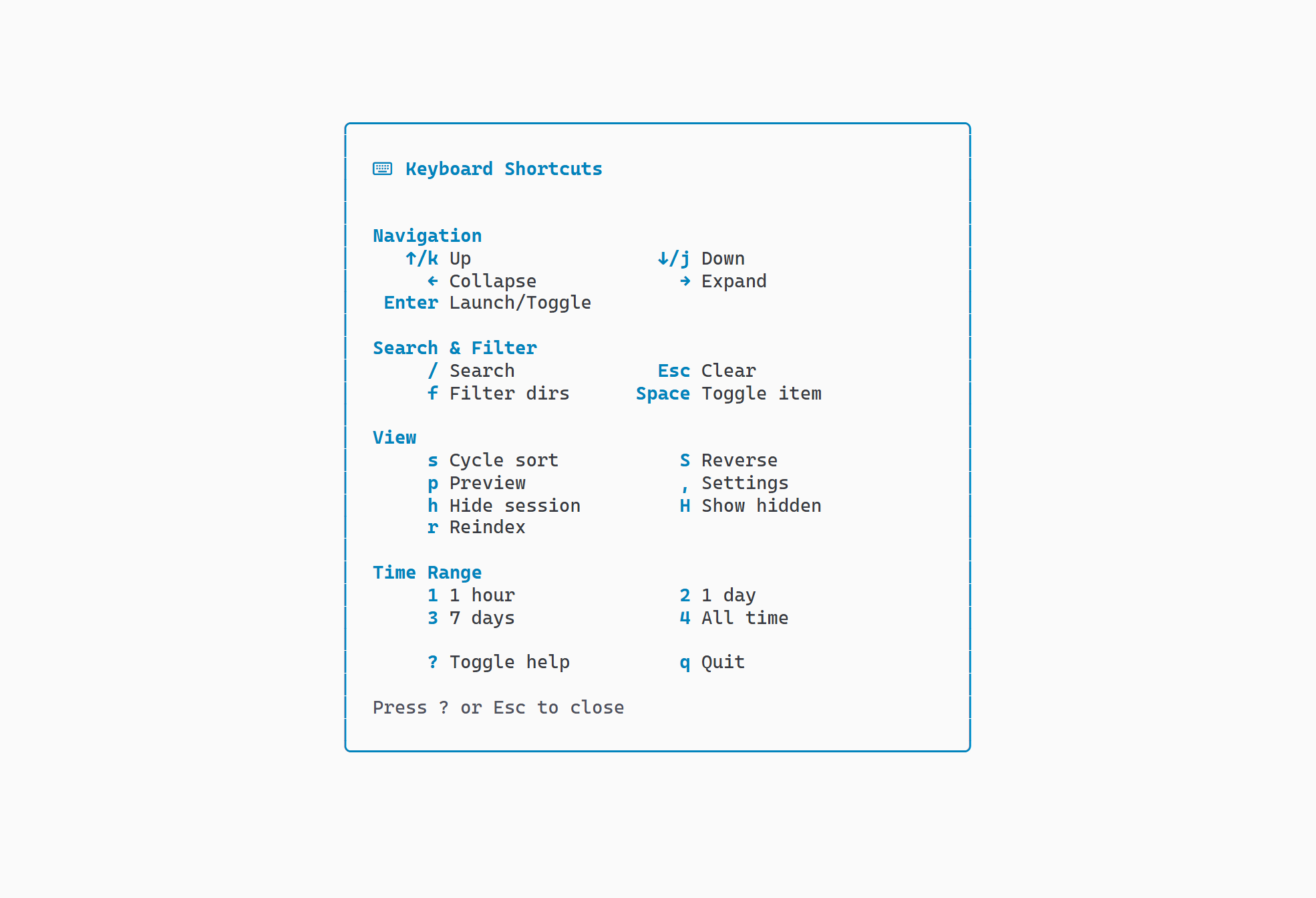
? to show. Two-column layout with grouped keyboard shortcuts: Navigation, Search & Filter, View, Time Range, General. A short help bar is always visible in the footer.
- Grouped by category for quick scanning
- Persistent help bar in footer shows common shortcuts
Mouse Support
Click to select sessions. Double-click to launch. Scroll wheel scrolls whichever pane is under the cursor — the session list or the preview panel. Click header elements (search bar, time range badges, sort indicator, pivot indicator) to interact directly.
- Ctrl+double-click forces a new window
- Shift+double-click forces a new tab
- 300ms double-click debounce
- Motion tracking enabled for hover states
Mouse interactions mirror keyboard functionality. Every clickable element has an equivalent keyboard shortcut.
Demo Mode
dispatch --demo loads a fake session database for
testing and screenshots. Non-destructive — the real session store
is untouched. Every screenshot on this site was captured using
demo mode.
- Synthetic sessions with realistic metadata
- Safe for experimentation — no data modified
- Used for all documentation screenshots
Run dispatch --demo in any terminal to try it.
CLI Commands
Built-in commands for maintenance, diagnostics, self-update, and help.
dispatch update— Update dispatch to the latest release. Downloads the newest binary from GitHub Releases and replaces the current installation in-place.dispatch --help/-h/help— Show usage information with all available flags and environment variables.dispatch --version/-v/version— Print the installed version and exit.dispatch --reindex— Full chronicle reindex via Copilot CLI pseudo-terminal. Rebuilds sessions, turns, checkpoints, files, and refs. Falls back to FTS5 index maintenance if the CLI binary is not found.dispatch --clear-cache— Reset all configuration to defaults.
A background update check runs on every launch and notifies you when a new version is available. All commands run non-interactively and exit immediately. Unknown flags print an error with usage help and exit with code 1.
Loading & Empty States
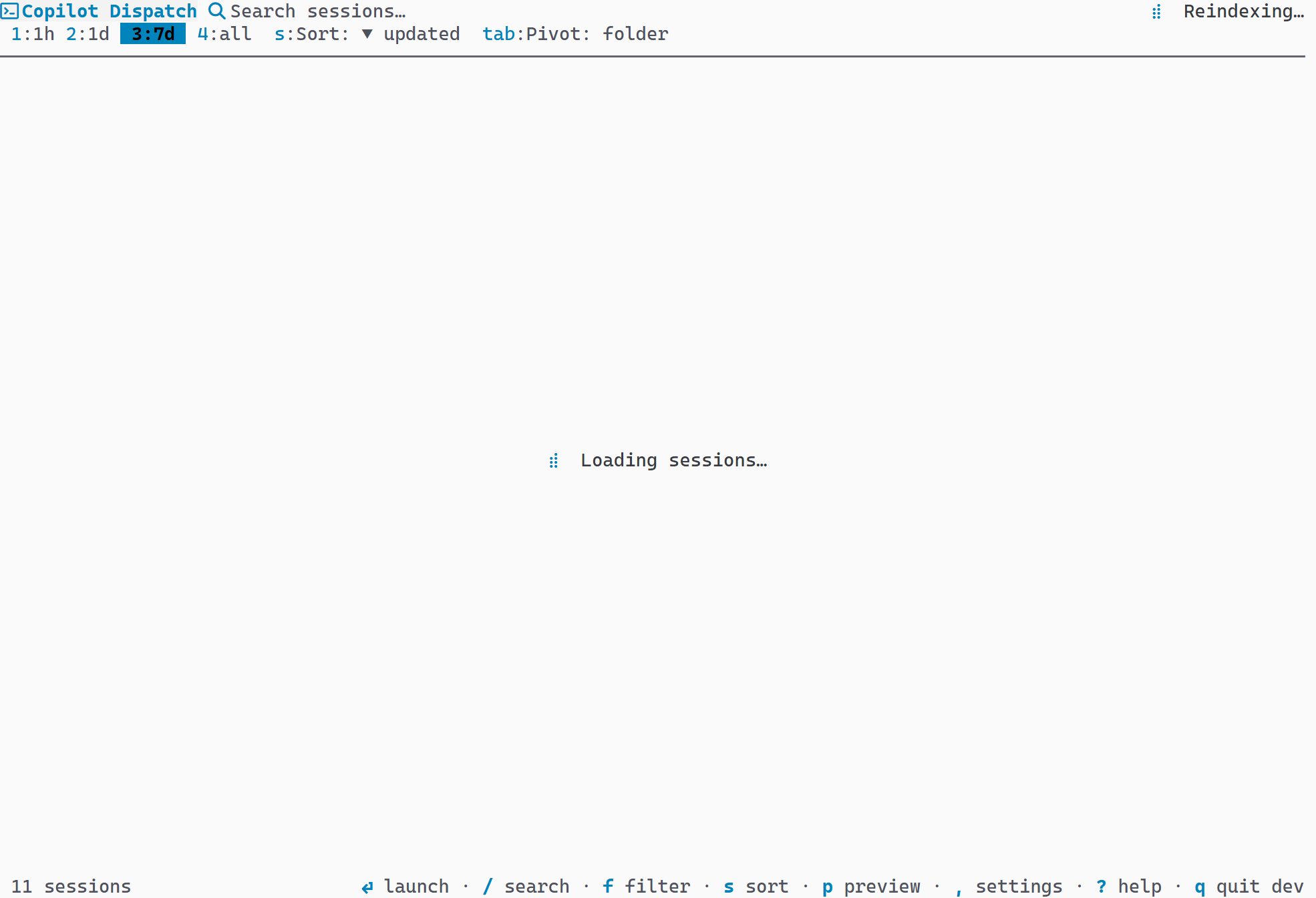
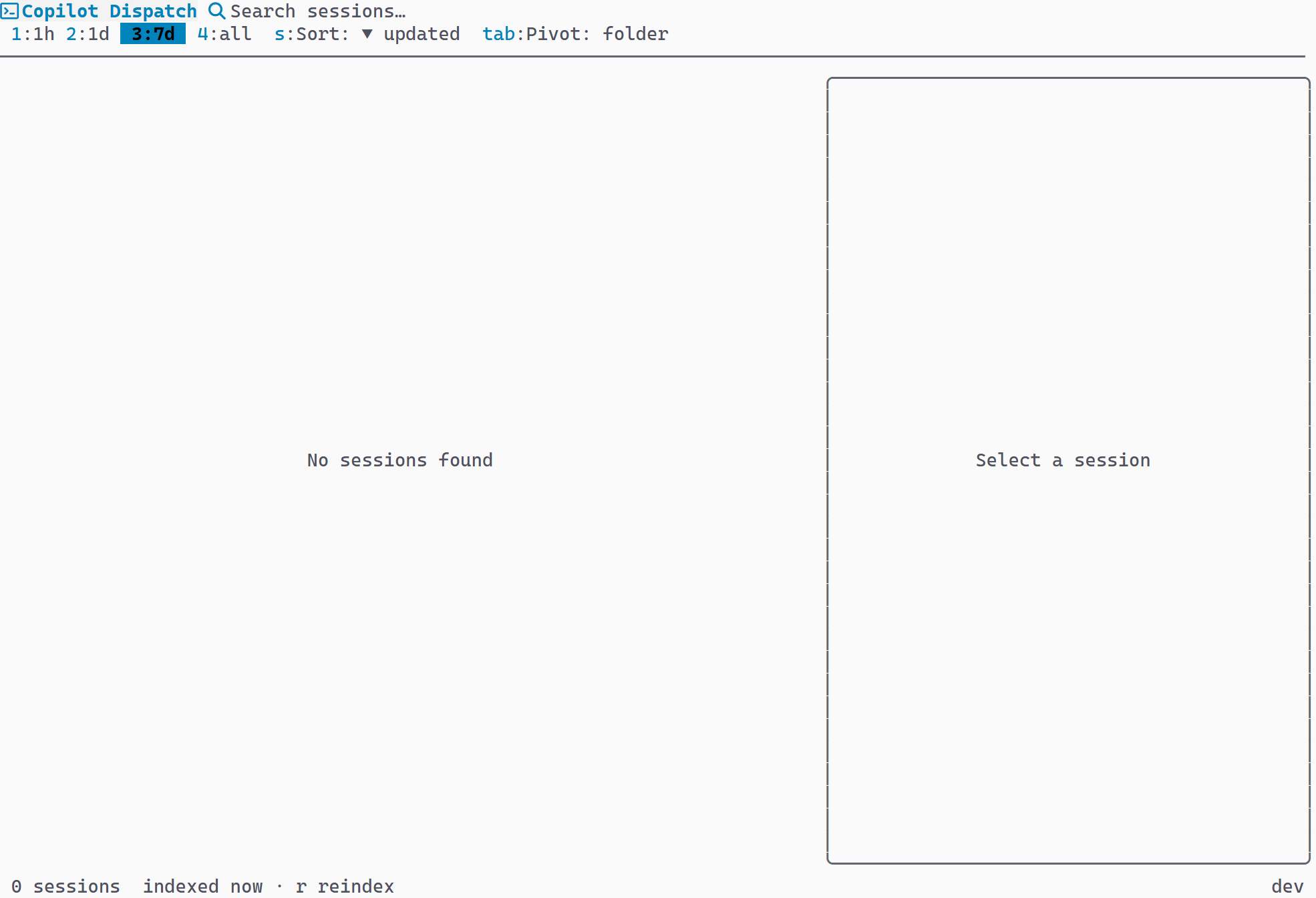
A loading spinner is shown while sessions are fetched from the database. An empty state message appears when no sessions match the current search query or active filters.
- Spinner visible on startup during initial database read
- Empty state differentiates "no results" from "no sessions"