File Explorer
The file explorer is the core navigation panel — a tree-view of your project with Nerd Font icons, git status markers, syntax-highlighted preview, and built-in file operations.
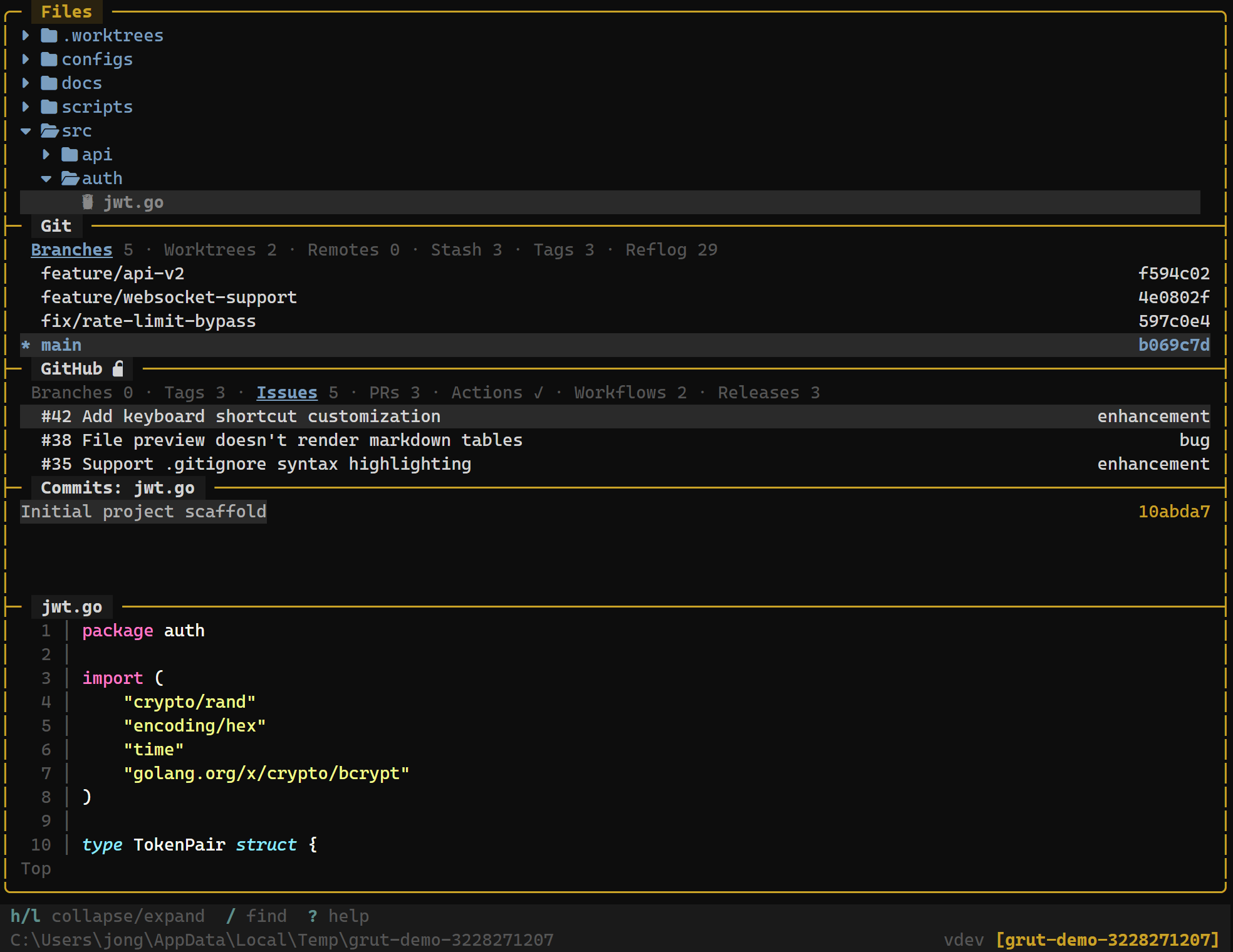
Navigation
The file tree uses vim-style navigation. Directories can be expanded and collapsed, and selecting a file opens a preview in the adjacent panel.
| Key | Action |
|---|---|
| j / ↓ | Move cursor down |
| k / ↑ | Move cursor up |
| h / ← | Collapse directory or move to parent |
| l / → | Expand directory or open file preview |
| Enter | Open file in preview panel |
| g | Jump to top of tree |
| G | Jump to bottom of tree |
| d | Page down |
| u | Page up |
File Operations
Create, rename, and delete files directly from the tree:
| Key | Action |
|---|---|
| n | Create a new file |
| N | Create a new directory |
| e / F2 | Rename the selected file or directory |
| r | Batch rename selected entries |
| x | Delete the selected file or directory (with confirmation) |
| o | Open file in external editor |
| y | Copy file path to clipboard |
| c | Copy selected file |
| p | Paste file |
| . | Toggle hidden files |
| f | Toggle git filter (changed files only) |
| v | Toggle tree / list view |
| s | Stage file (in git filter mode) |
| Space | Toggle stage / unstage |
| J | Scroll preview down |
| K | Scroll preview up |
When creating a file or directory, grüt opens an inline text input at the current cursor position. Type the name and press Enter to confirm, or Esc to cancel.
Batch rename opens an editor with one repo-relative path per line for the current selection, or the focused entry if nothing is selected. Edit the destination paths, press Ctrl+S to apply, or Esc to cancel. Empty names, duplicate destinations, parent-directory traversal (..), and paths outside the repository are blocked.
Deletion always requires confirmation — grüt shows the file name and asks you to press y to confirm or n to cancel. Directories are deleted recursively after confirmation.
File Icons
grüt displays file and directory icons using Nerd Fonts. Icons are determined by file extension and special file names (e.g.,Dockerfile, Makefile, .gitignore). If your terminal does not support Nerd Fonts, switch to ASCII mode:
[file_tree]
icon_mode = "ascii"   # Options: "nerd", "ascii", "auto" (default: "auto")
In auto mode, grüt attempts to detect Nerd Font support and falls back to ASCII icons if the detection fails.
Git Status Markers
When inside a git repository, the file tree shows status markers next to each file:
✗— modified (unstaged)●— staged+— untracked (new file)-— deleted→— renamed✗— conflicted
Directory nodes aggregate the status of their children — a directory shows a marker if any file within it has changes.
Safe Delete
Deleted files and directories move to grut trash by default, with a manifest that records the original path. Press u in the file tree to restore the most recent trashed item. Set file_tree.permanent_deleteto true to opt back into permanent deletion.
Preview Panel
Selecting a file shows a syntax-highlighted preview in the adjacent panel. The preview supports over 100 languages, displays line numbers, and truncates files that exceed the configured size limit. Binary files show a type indicator instead of content.
Configuration
[file_tree]
icon_mode = "auto"              # "nerd", "ascii", or "auto"
show_hidden = true              # Show dotfiles and hidden directories
sort_directories_first = true   # Directories appear before files
git_status_markers = true       # Show git status markers on files
max_depth = 0                   # Max tree depth (0 = unlimited)
follow_symlinks = false         # Follow symbolic links in the tree
permanent_delete = false       # Permanently delete instead of moving deletes to trash
Next Steps
- Fuzzy Finder — quick file search
- Bookmarks — pin frequently used directories
- Layout & Panels — multi-panel layout