Git Status & Staging
grüt gives you a live view of your working tree status with inline markers, a dedicated status panel, and single-key staging.
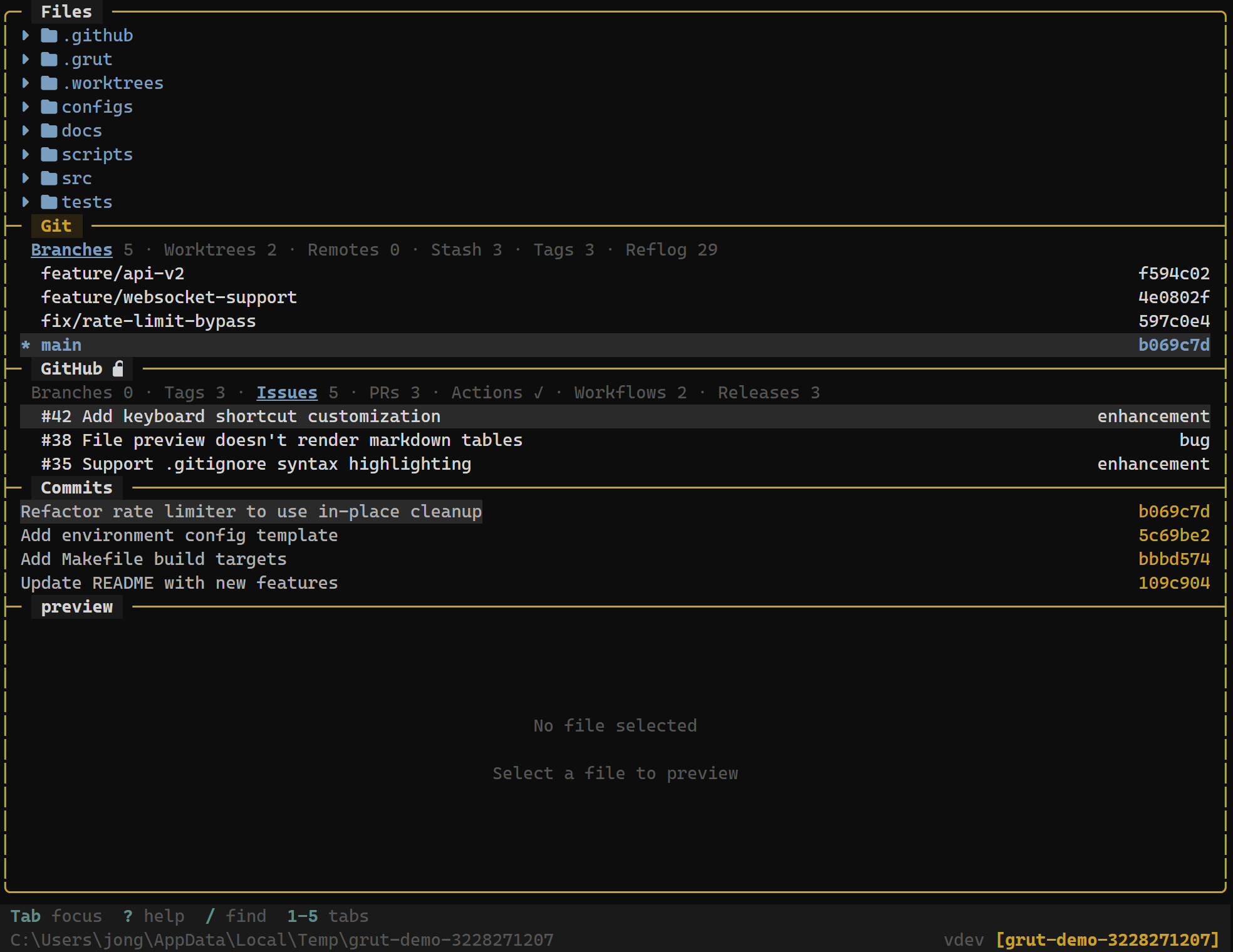
Status Panel
The git status panel (visible in the Git andFull layouts) groups files into three sections:
- Staged — files added to the index, ready to commit
- Modified — tracked files with unstaged changes
- Untracked — new files not yet tracked by git
Each section shows a file count badge. Navigate between files withj/k and press Enter to preview the diff.
File Tree Markers
When git_status_markers is enabled (the default), the file tree shows status markers next to each file:
| Marker | Meaning | Color |
|---|---|---|
| ● | Staged (added to index) | Green |
| ✗ | Modified (unstaged changes) | Yellow |
| ? | Untracked (new file) | Gray |
| ▸ | Renamed | Green |
| ✗ | Deleted | Red |
Directories inherit the "most urgent" status of their children — a directory containing a modified file shows the modified marker.
Staging & Unstaging
Staging is done directly from the file tree. Press f to toggle the git filter (showing only changed files), then use these keys:
Stage / Unstage (File Tree)
| Key | Action |
|---|---|
| s | Stage the selected file |
| Space | Toggle stage / unstage |
Staging a file moves it from the "Modified" or "Untracked" section to the "Staged" section. The file tree marker updates to ● immediately.
Staging Workflow
A typical staging workflow in grüt:
- Focus the Git Info panel with 2
- Navigate to a modified file in the status panel
- Press Enter to review the diff
- Press s to stage the file
- Repeat for each file you want to include in the commit
- Press c to open the commit dialog
You can also stage directly from the file tree — navigate to a file and presss. The status panel and file tree markers stay in sync.
Discarding Changes
Press d on a modified file to discard its changes. grüt asks for confirmation before discarding because this operation cannot be undone for unstaged changes.
Warning: Discarding unstaged changes is permanent. Staged changes can be unstaged first, but unstaged modifications are lost forever.
Auto-Refresh
grüt watches your working tree for changes using fsnotify (or polling, if configured). When files change on disk — from your editor, a build tool, or another process — the status panel and file tree update automatically. No manual refresh needed.