Git Merge
Merge branches directly from the grüt TUI. Select a target branch, choose a strategy, and resolve conflicts without leaving your terminal.
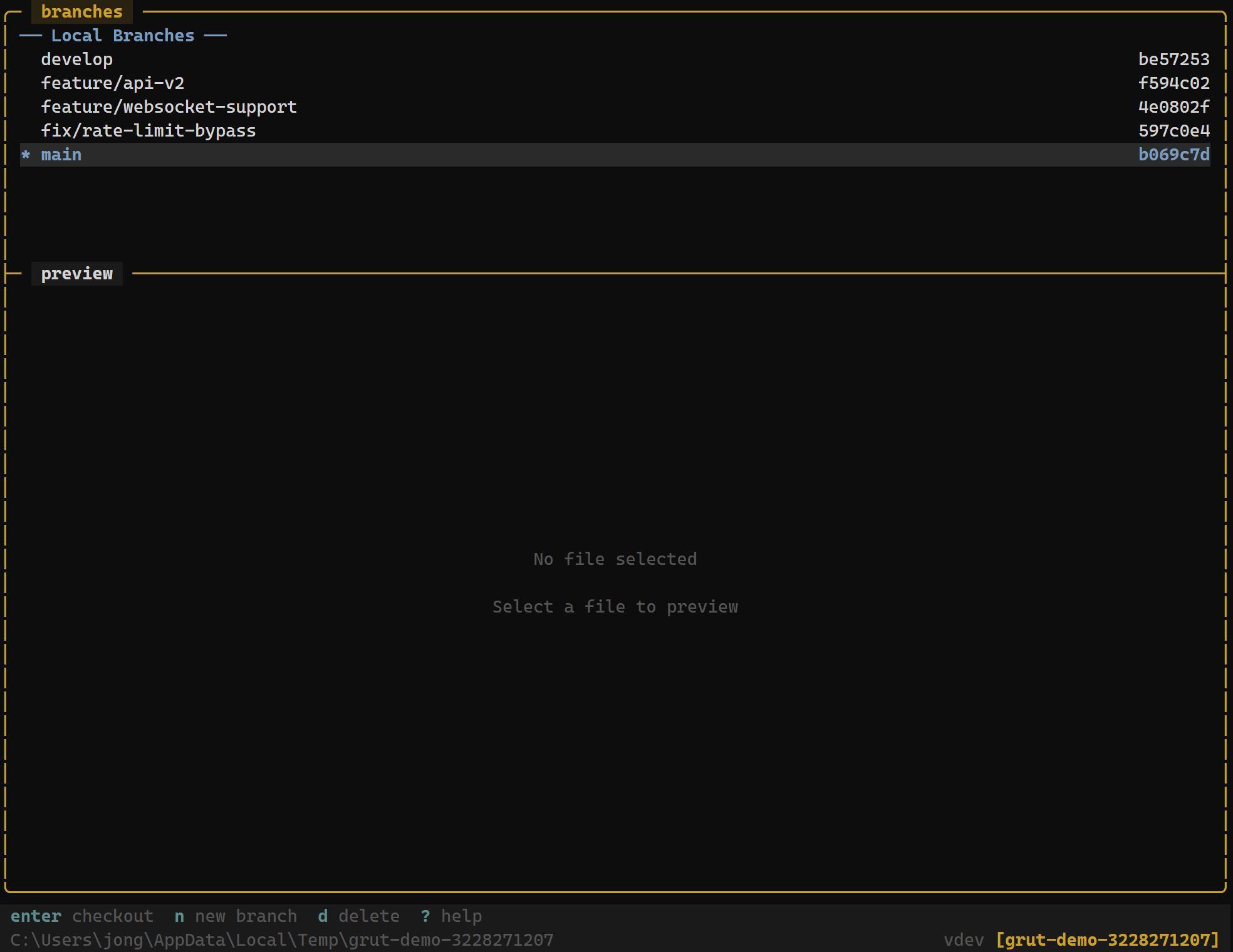
Starting a Merge
Navigate to the branches panel with your configured panel-switching keybinding. Use j / k to highlight the branch you want to merge, then pressm to merge it into your current branch.
grüt runs the merge in the background and refreshes the status panel automatically. If the merge completes cleanly, you'll see the updated commit log immediately.
Branch Panel
| Key | Action |
|---|---|
| m | Merge selected branch into current branch |
| Enter | Checkout selected branch |
Merge Strategies
grüt supports three merge strategies, configurable viagrut.toml:
- Fast-forward (default) — moves the branch pointer forward when there is a linear path. No merge commit is created.
- Merge commit — always creates an explicit merge commit, even when a fast-forward is possible. Useful for preserving branch history.
- Squash — collapses all incoming commits into a single commit on the current branch. The original branch history is not recorded in the merge.
Configuration
Set the default merge method in your grut.toml:
[git]
worktree_merge_method = "merge"   # options: "merge", "rebase", "squash"
This setting also applies when pulling from a remote — the configured method determines how incoming changes are integrated.
Conflict Resolution
When a merge produces conflicts, grüt automatically switches to conflict resolution mode. The file panel highlights conflicting files with a distinct marker, and the diff view shows conflict blocks with <<<<<<< ours />>>>>>> theirs markers.
Select a conflicting file to open the inline conflict resolver. Each conflict hunk is presented with three options:
Conflict Resolution
| Key | Action |
|---|---|
| o | Accept ours — keep current branch version |
| t | Accept theirs — keep incoming branch version |
| b | Accept both — concatenate ours and theirs |
| Enter | Mark conflict as resolved |
After resolving all conflicts in a file, press Enter to mark it resolved. Once every conflicting file is marked resolved, grüt prompts you to complete the merge commit.
Aborting a Merge
If you need to abandon a merge in progress, use the command palette (:) and runmerge --abort. This restores your working tree to the state before the merge began.