Git Branches
The branch panel gives you full control over local and remote branches — create, checkout, rename, delete, and merge without typing a single git command.
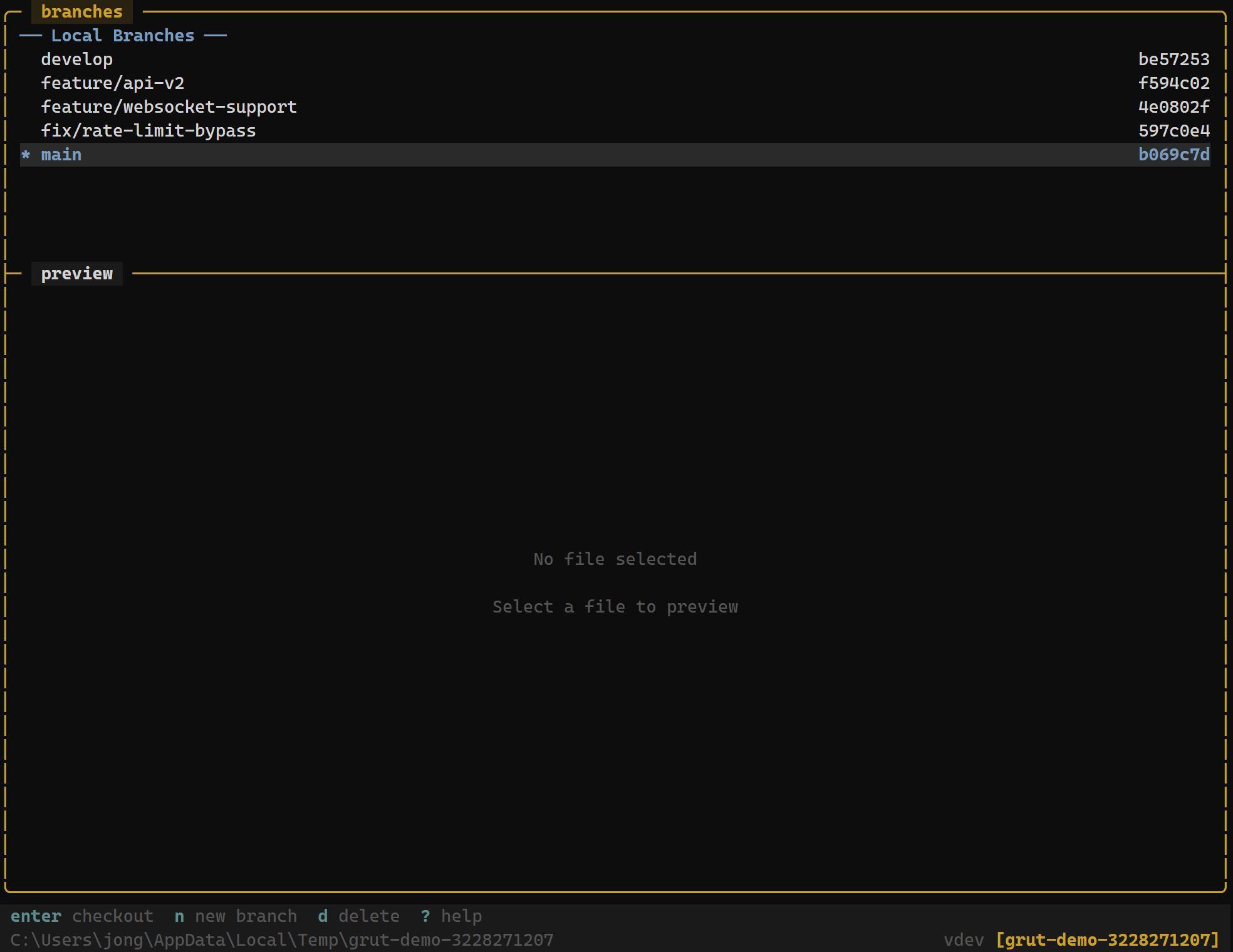
Branch Panel
The branch panel is visible in the Git, Review, and Full layouts. It lists:
- Local branches — with the current branch highlighted by a ● marker
- Remote branches — grouped under each remote name (e.g.
origin/)
Each branch entry shows:
- Branch name
- Last commit message (truncated)
- Ahead/behind remote count (e.g.
↑2 ↓1)
Branch Keybindings
| Key | Action |
|---|---|
| Enter | Checkout the selected branch |
| n | Create a new branch from HEAD |
| x | Delete the selected branch |
| e / F2 | Rename the selected branch |
| o | Open branch in browser |
| y | Copy branch name to clipboard |
| f | Fetch from remotes |
Checking Out a Branch
Navigate to a branch with j/k and pressEnter to check it out. grüt:
- Runs
git checkout <branch> - Refreshes the file tree to reflect the new branch's files
- Updates the status panel with any changed files
- Updates the commit log to show the new branch's history
- Moves the ● marker to the checked-out branch
If you have uncommitted changes that would conflict, grüt shows the git error and the checkout is aborted. Stage or stash your changes first.
Creating a New Branch
Press n to create a new branch. grüt opens a text input where you type the branch name and press Enter.
- The new branch is created from the current
HEAD - grüt automatically checks out the new branch after creation
- The branch list updates immediately
Press Esc to cancel branch creation.
Deleting a Branch
Navigate to a branch and press x. grüt asks for confirmation before deleting. Deleting the currently checked-out branch is not allowed — switch to a different branch first.
For unmerged branches, grüt warns you that the branch contains commits not present in any other branch and asks for explicit confirmation.
Renaming a Branch
Press e or F2 on a branch to rename it. A text input appears pre-filled with the current name. Edit the name and press Enter to confirm.
Merging
Press m to merge the selected branch into the current branch. grüt runs git merge <branch> and refreshes all panels.
If the merge results in conflicts, grüt switches to the conflict resolution view. See Conflicts for details.
Remote Branches
Remote branches appear below local branches in the branch panel, grouped by remote name. You can check out a remote branch by pressing Enter— grüt creates a local tracking branch automatically.
Use F to fetch the latest remote refs before browsing remote branches.