Git Tags
Manage release tags and version markers from the tag panel. Create annotated or lightweight tags, browse tag history, and inspect tagged commits.
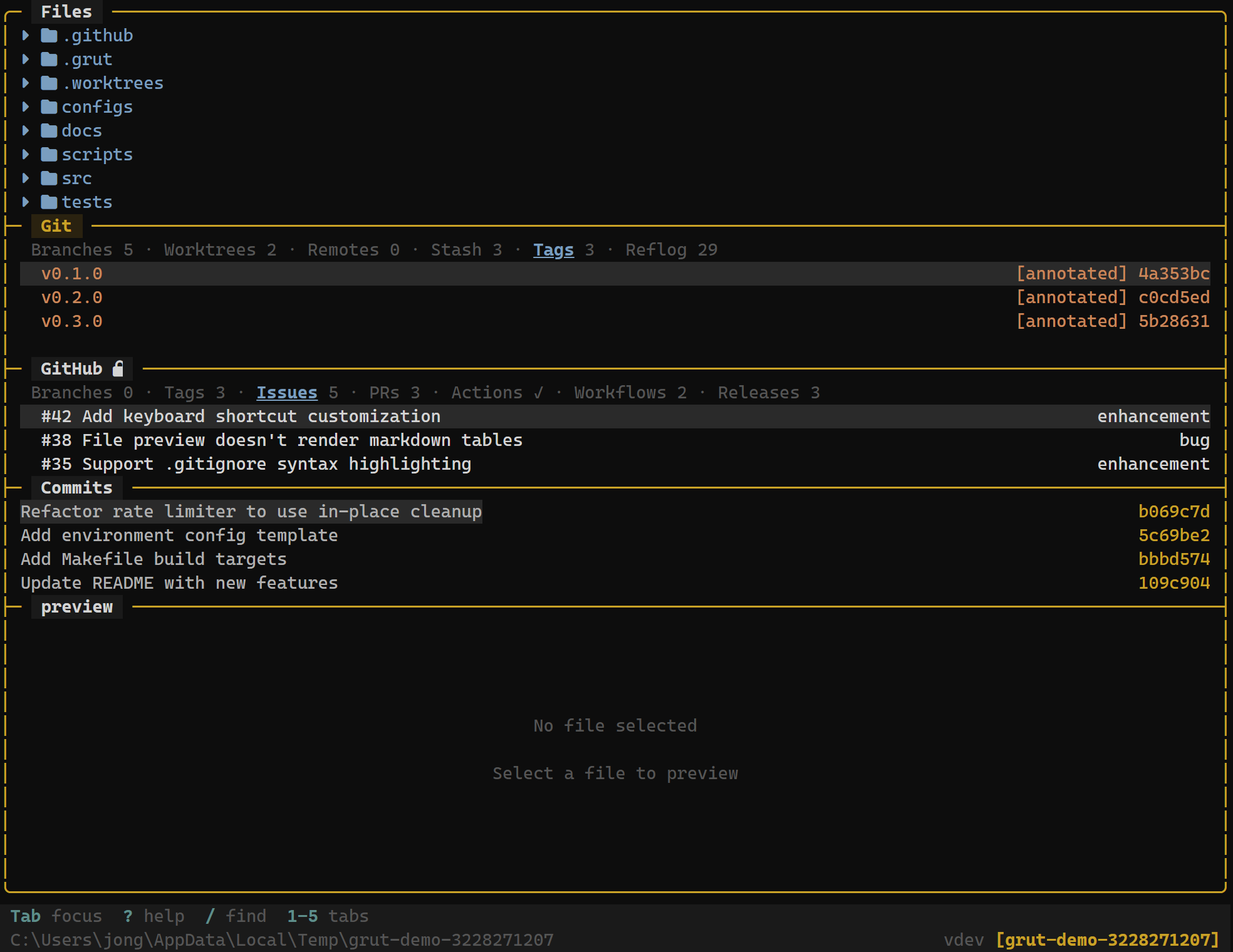
The Tag Panel
The tag panel lists every tag in the repository, sorted by date with the most recent tag at the top. Each entry shows:
- Tag name — e.g.,
v1.2.0 - Tagger — the person who created the tag (annotated tags only)
- Date — when the tag was created
- Annotation preview — the first line of the tag message (annotated tags only)
Lightweight tags display the tag name and the commit date, but have no tagger or annotation since they are simply pointers to a commit.
Keybindings
Tag Panel
| Key | Action |
|---|---|
| n | Create new tag — prompts for name and optional message |
| x | Delete selected tag |
| Enter | View the commit associated with the selected tag |
Creating Tags
Press n in the tag panel to create a new tag on the current HEADcommit. grüt prompts you for:
- Tag name — typically a semantic version like
v1.3.0. - Tag message (optional) — if you provide a message, grüt creates anannotated tag. If you leave it blank, a lightweight tag is created instead.
Annotated vs. Lightweight Tags
- Annotated tags are full Git objects. They store the tagger name, email, date, and a message. Use annotated tags for releases and important milestones.
- Lightweight tags are simple pointers to a commit with no additional metadata. Use them for temporary or personal bookmarks.
# Equivalent git commands:
git tag -a v1.3.0 -m "Release 1.3.0"    # annotated
git tag v1.3.0-rc1                        # lightweight
Viewing Tagged Commits
Press Enter on any tag to jump to the full commit view for that tag. The commit panel shows the diff, commit message, author, and parent commits — identical to browsing any commit in the log.
Deleting Tags
Press x to delete the selected tag. grüt asks for confirmation before removing the tag. Note that this only deletes the local tag — to remove a tag from a remote, use the command palette:
:push origin --delete v1.2.0