Git Commits
Once you've staged your changes, press c to commit. grüt provides a focused commit workflow without ever leaving the terminal.
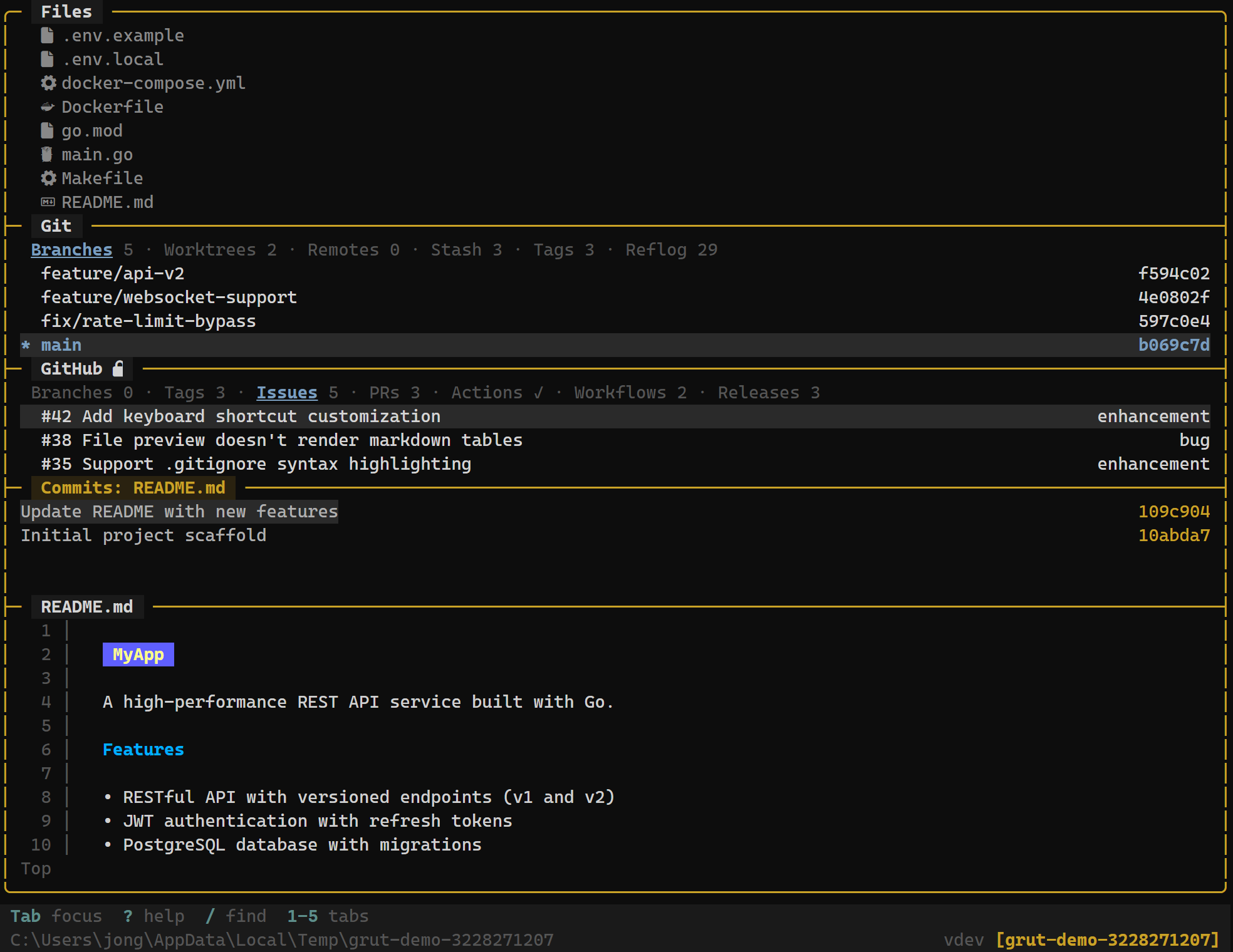
Commit Dialog
Press c from the git status panel to open the commit dialog. The dialog shows:
- A text input for your commit message
- A summary of staged changes (files added, modified, deleted)
- The current branch name
Type your commit message and press Enter to commit. PressEsc to cancel without committing.
Commit Keybindings
| Key | Action |
|---|---|
| c | Open commit dialog |
| Enter | Confirm and execute commit (in dialog) |
| Esc | Cancel commit dialog |
Commit Options
Sign Commits
Enable commit signing in your config to sign every commit with GPG or SSH:
[git]
sign_commits = true
This requires git to be configured with a signing key. grüt passes the -S flag to git commit.
Amend Last Commit
To amend the most recent commit, stage your changes and use the command palette (:) to run commit --amend. This opens the commit dialog pre-filled with the previous commit message.
Commit Panel
Before committing, the commit panel at the bottom of the status view shows a summary of what will be committed:
- Number of staged files
- Insertions and deletions (line counts)
- File types affected
This gives you a quick sanity check before pressing c.
After Committing
When a commit succeeds:
- The status panel refreshes — staged files are cleared
- The commit log updates with the new commit at the top
- The branch's ahead/behind count updates if a remote is configured
- A brief success notification appears at the bottom of the screen
If the commit fails (e.g. due to a pre-commit hook), grüt displays the error output from git so you can fix the issue and retry.
Pushing After Commit
After committing, press P (Shift+p) to push your commits to the remote. The branch panel shows how many commits you are ahead of the remote.
See also: Status & Staging for the pre-commit workflow, and Branches for branch-level operations.